
How to Download Your Instagram Data ZIP File (2026 Step-by-Step Guide with Screenshots)
Step-by-step screenshot tutorial to download your Instagram data ZIP file in JSON format and use it with the free Unfollowers Tracker.
If you have ever wondered who unfollowed you on Instagram, the safest and most accurate answer lives inside a single ZIP file Meta is legally required to give you on request. This guide is the most detailed walkthrough you will find online, 19 real screenshots, every tap labelled, troubleshooting for the things that actually go wrong, and a one-paragraph summary at the top so you can move fast.
No login. No third-party app. No APK. No browser extension. By the end of this tutorial, you will have your Instagram data ZIP saved to your device and your unfollowers list rendered in the free Unfollowers Tracker, usually in under five minutes.
TL;DR, the 60-second version
Open Instagram → ☰ menu → Settings and activity → Accounts Center → Your information and permissions → Export your information → Create export → choose your Instagram profile → Export to device → tap Customize information and select only Followers and following → set Date range to All time → set Format to JSON → tap Start export → wait for Meta’s email (usually 5-15 minutes) → tap Download → drop the ZIP into the Unfollowers Tracker.
Want a faster pre-flight? Watch the animated 60-second walkthrough, every step plays out as a pure-CSS demo, no setup required.
Why the ZIP file method is the best way to find unfollowers
Instagram does not show you who unfollowed you. That silence is intentional, Meta’s product team wants to reduce social friction, but it also means creators have to bring their own tooling. Two routes exist:
- The "log in with Instagram" route. You hand a third-party app your username + password (or grant OAuth), and they store your follower list on a server somewhere. Risky, against Instagram’s automation policy, and the cause of countless suspended accounts.
- The data-export (ZIP file) route. You ask Meta directly for a copy of your follower data, save it as a ZIP, and analyse it in your own browser. Safe. Free. Fully accurate. This is the route Meta itself recommends under GDPR (Europe), CCPA (California), and Brazil’s LGPD.
The free Unfollowers Tracker on this site is built around the second route. Your ZIP never leaves your device, no upload endpoint exists, and we never ask for your Instagram credentials. Read the engineering breakdown in the Instagram ZIP file method, explained and the safety verification in is the Unfollowers Tracker safe?.
Before you start, what you will need
- An Instagram account you own (this also works for private accounts, the data is yours).
- Access to the email address linked to your Instagram account, because that is where Meta sends the download link.
- About 5 minutes of active time plus 5-60 minutes of waiting (most Followers-only exports arrive within 15 minutes; bigger exports can take longer).
- A modern browser on iPhone, Android, Mac, Windows, or Linux. The whole flow works equally well on mobile and desktop, this tutorial uses mobile screenshots, but every label matches the desktop version too.
Step-by-step: download your Instagram data ZIP file
Each of the 19 numbered screenshots below matches one tap. Follow them in order and you cannot go wrong. Anchors like `#step-1` make it easy to deep-link to a specific step from another article.
Step 1, Open your Instagram profile menu
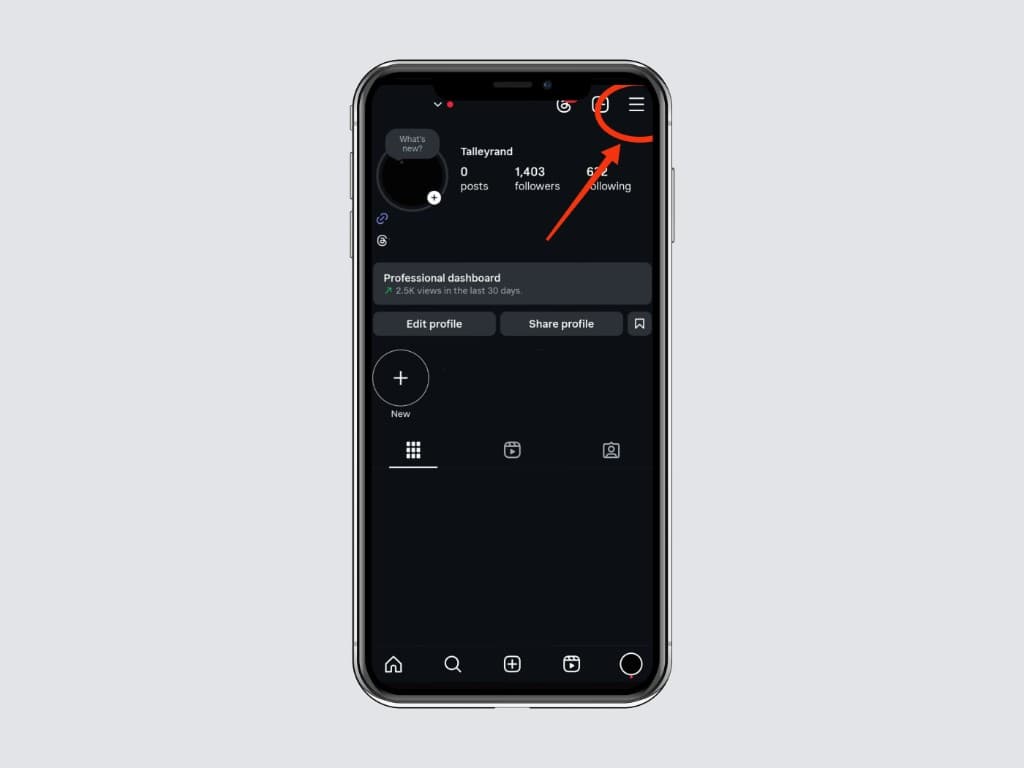
Launch the Instagram app on your phone (iOS or Android), tap your profile picture in the bottom-right tab bar, then tap the ☰ menu icon in the top-right corner. This opens the Settings and activity screen. On desktop, click your avatar at the top-right of instagram.com, then click Settings.
Step 2, Open Accounts Center
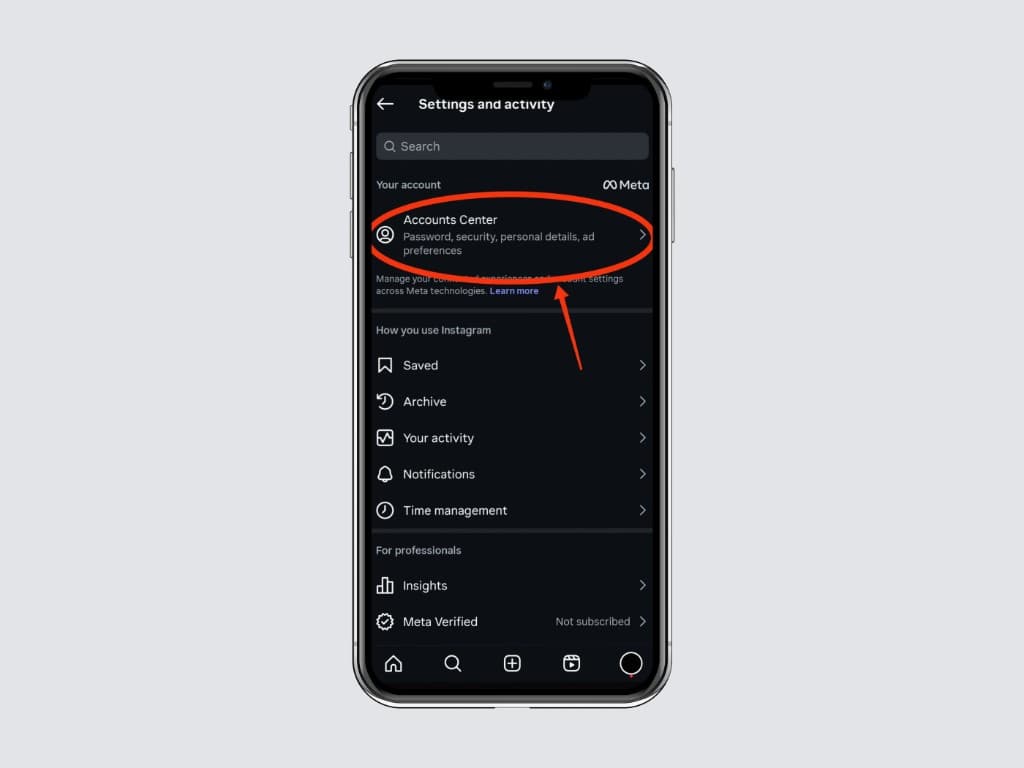
At the top of the Settings and activity screen you will see Accounts Center under the "Your account" heading. Tap it. Accounts Center is the unified place where Meta manages settings shared across Instagram, Facebook, and Threads, including the data export tool.
Step 3, Open Your information and permissions
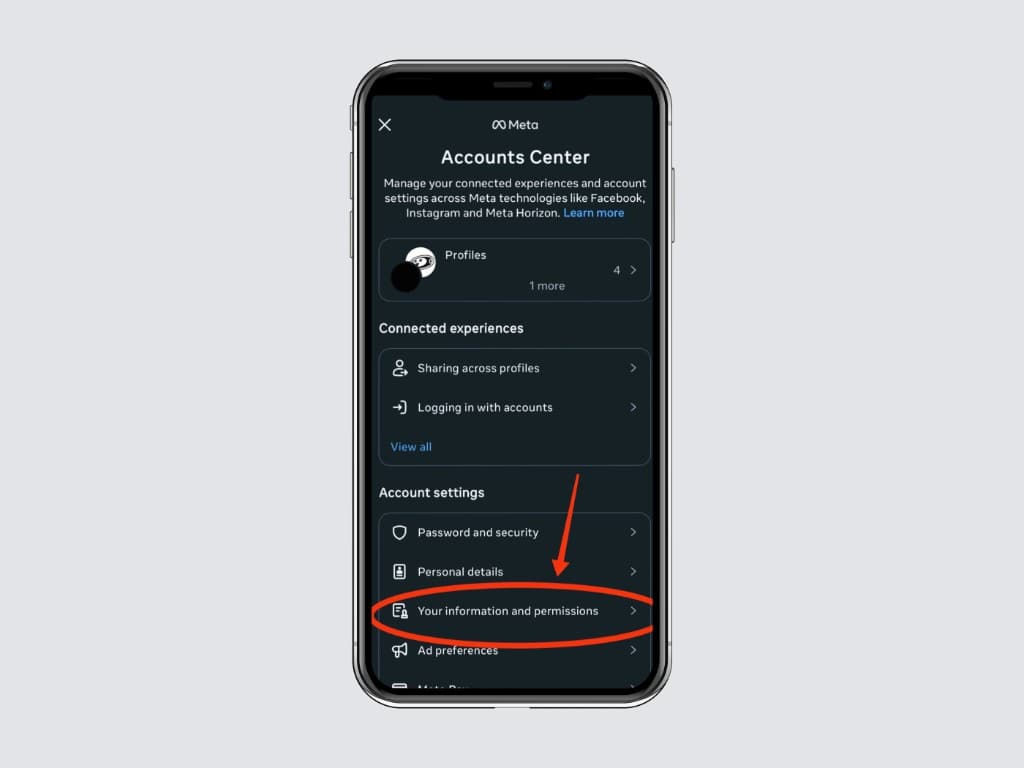
Inside Accounts Center, scroll down to the Account settings section and tap Your information and permissions. This is the privacy hub Meta is required to surface under GDPR, CCPA, and similar regulations, it is also where the official Instagram data download lives.
Step 4, Tap Export your information
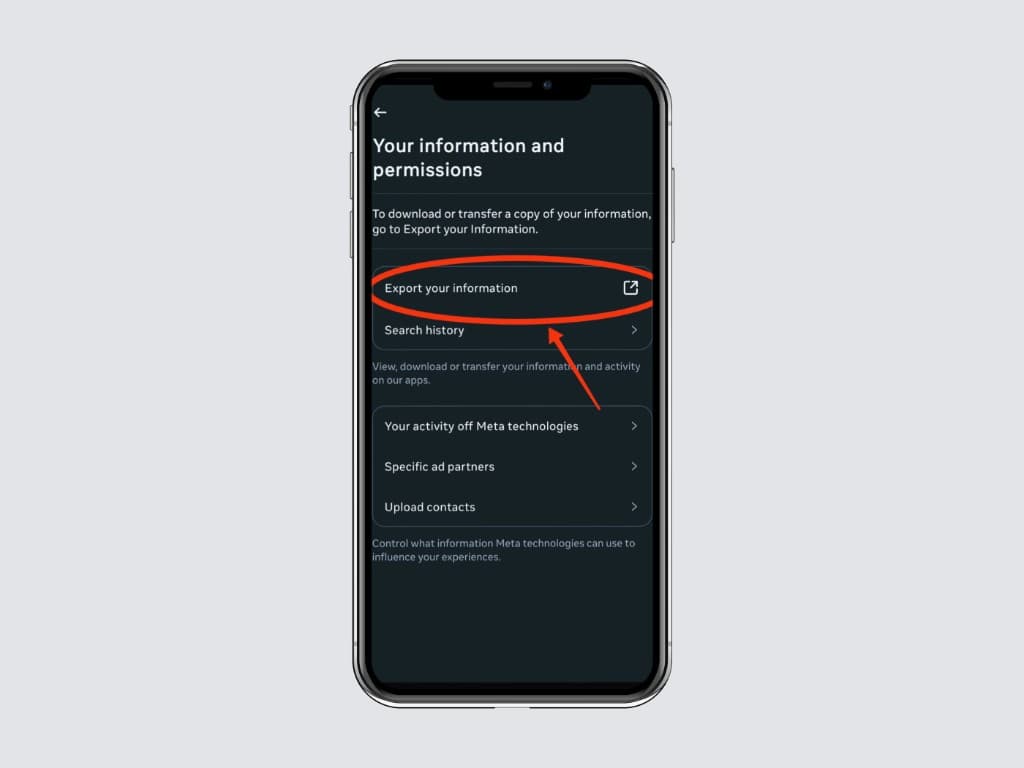
Tap the Export your information button. Meta may briefly ask you to log in again for security purposes, this is normal. After authentication, you land on the export hub where you can request and download data exports.
Step 5, Tap Create export
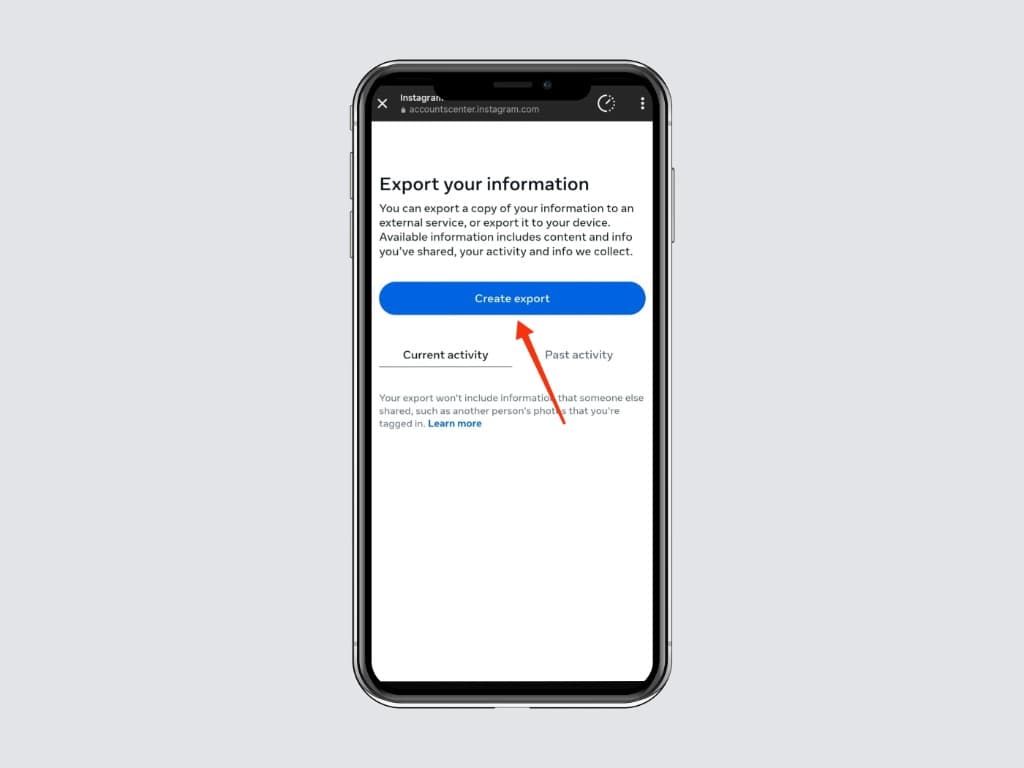
On the Export your information screen, tap the blue Create export button. This starts a brand-new export request. Existing past exports (if any) appear below as a list, you can re-download those for 4 days after creation.
Step 6, Choose your Instagram profile
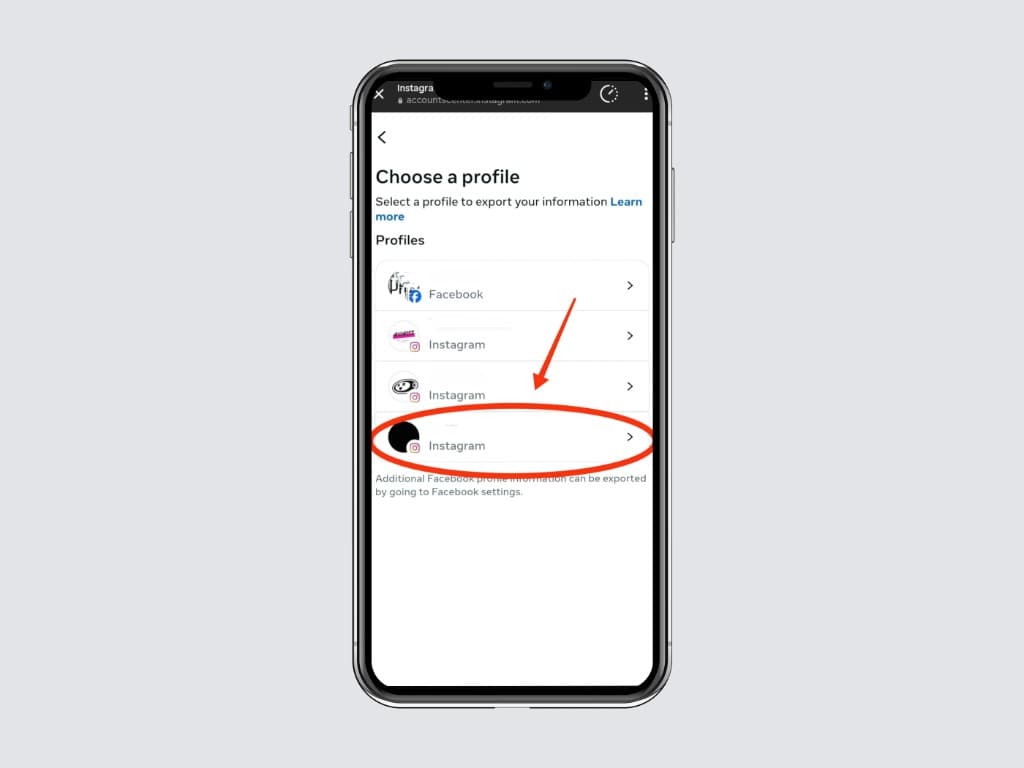
If your Accounts Center is linked to multiple Instagram, Facebook, or Threads profiles, you will see a list. Tap the Instagram profile whose unfollowers you want to find. If you only have one linked profile, this screen may be skipped automatically.
Step 7, Choose Export to device
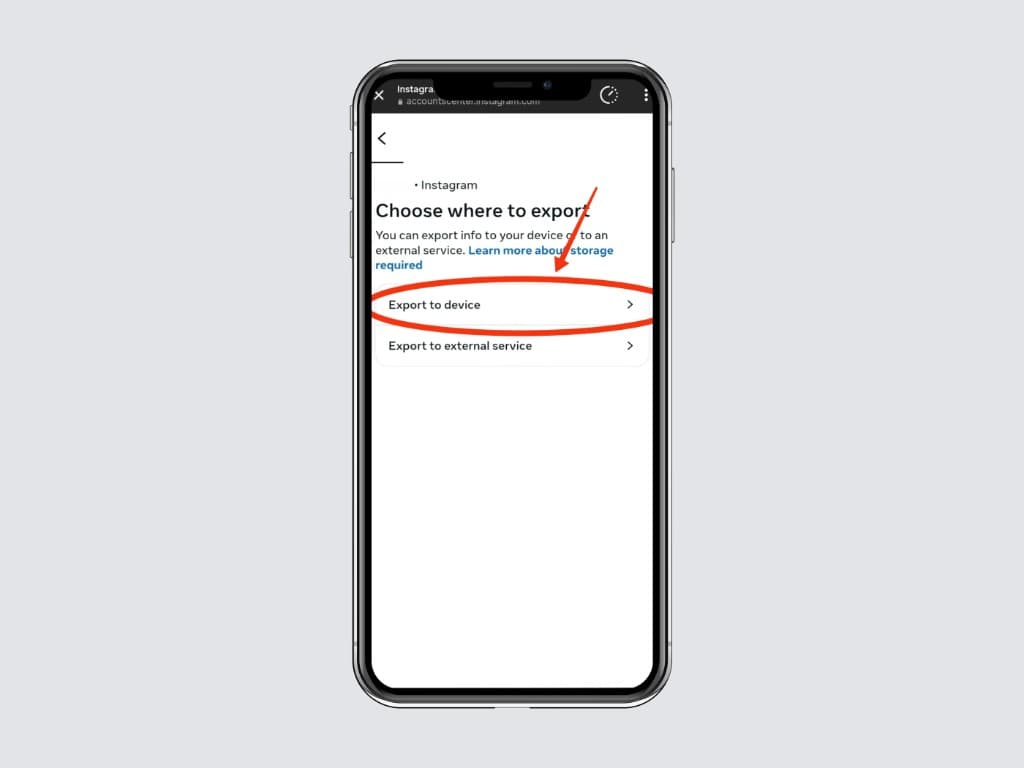
Meta gives you two options: Export to device or Export to external service (Google Drive, Dropbox, etc.). Choose Export to device, it is the fastest, most private option, and it gives you the ZIP file you need to drop into the Unfollowers Tracker.
Step 8, Open the Confirm your export screen
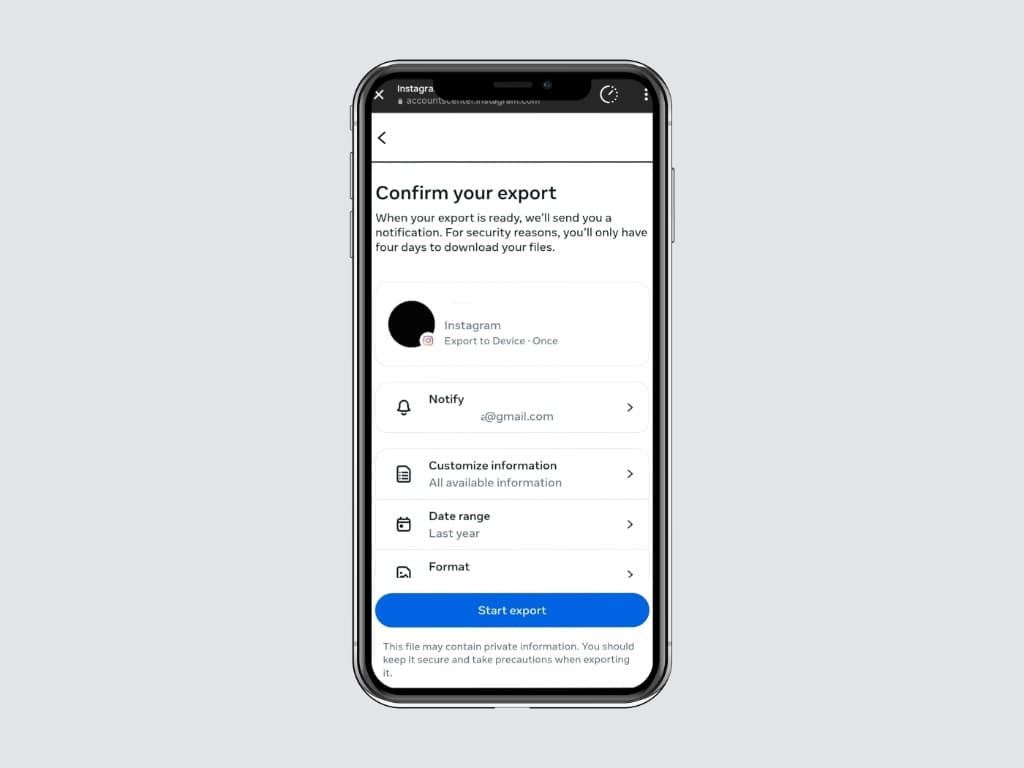
You arrive at the Confirm your export screen. By default Meta picks All available information, Last year, and an unspecified format. We will narrow these down in the next three steps so the export stays small and quick. The Notify field is auto-filled with your account email, confirm it is correct.
Step 9, Customize information → Followers and following
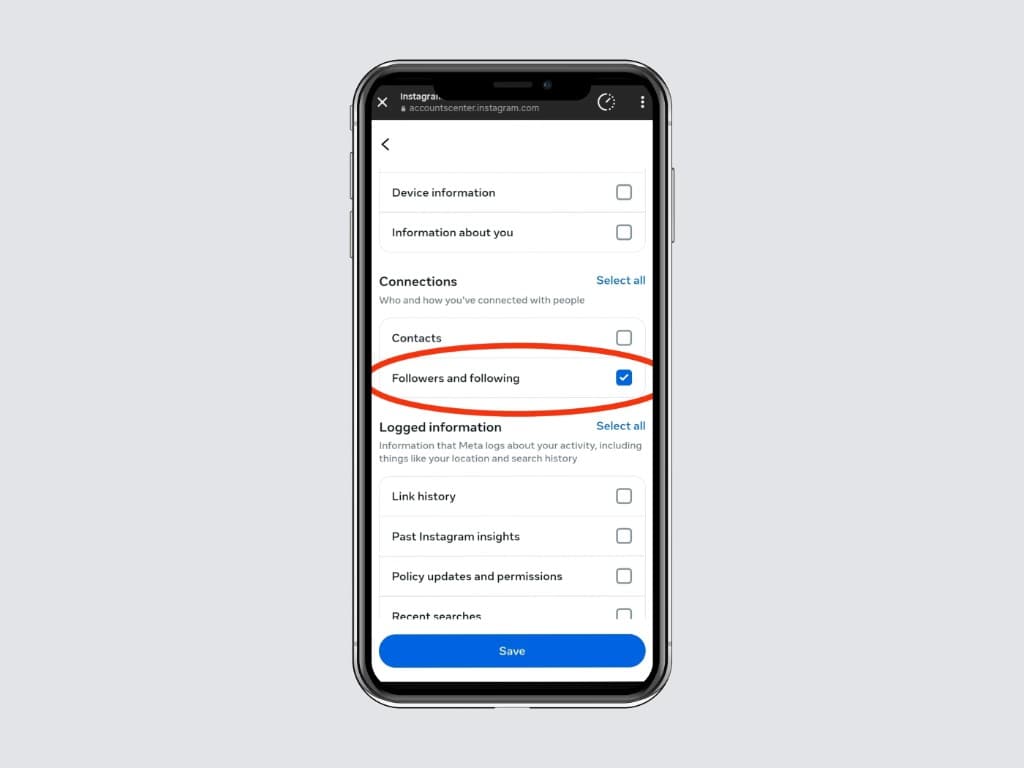
Tap Customize information. Scroll to the Connections section and tick only "Followers and following". Uncheck everything else (Device information, Information about you, Contacts, Logged information, etc.). This is the most important customization, without it your ZIP will be huge (sometimes gigabytes) and take hours to prepare.
Step 10, Set Date range to All time
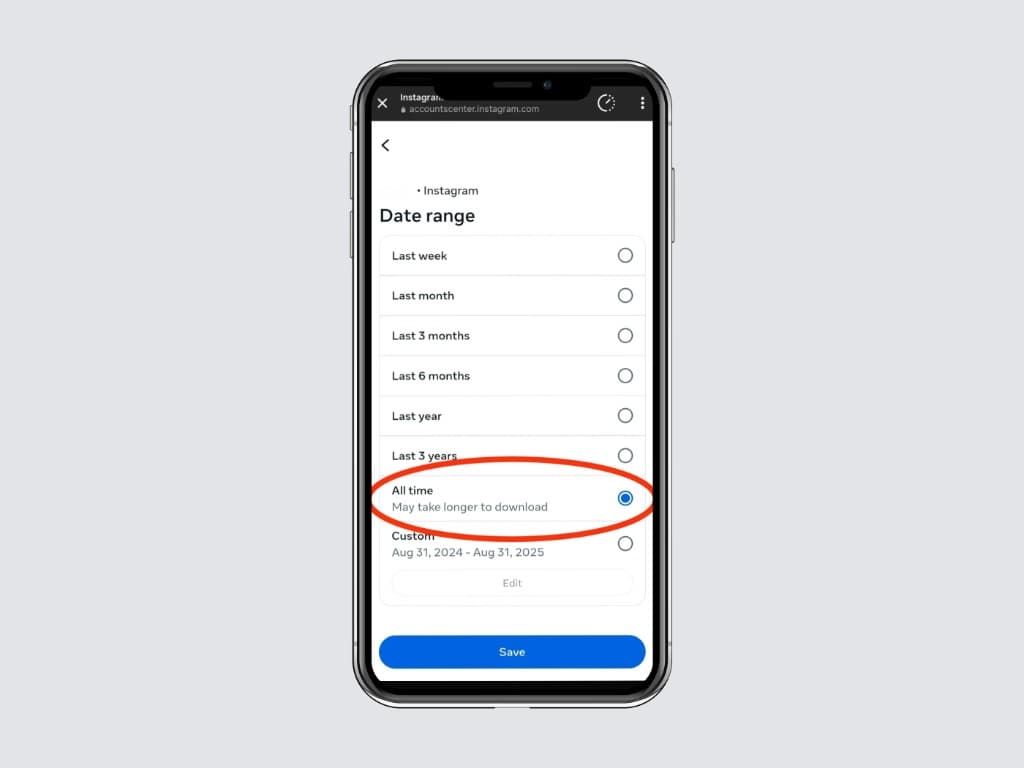
Tap Date range and choose All time. This ensures your ZIP includes every account that has ever followed you (and every account you have ever followed). Anything shorter (Last week, Last month, Last year) will give you incomplete data and the Unfollowers Tracker will undercount your unfollowers and ghosts. Tap Save.
Step 11, Set Format to JSON
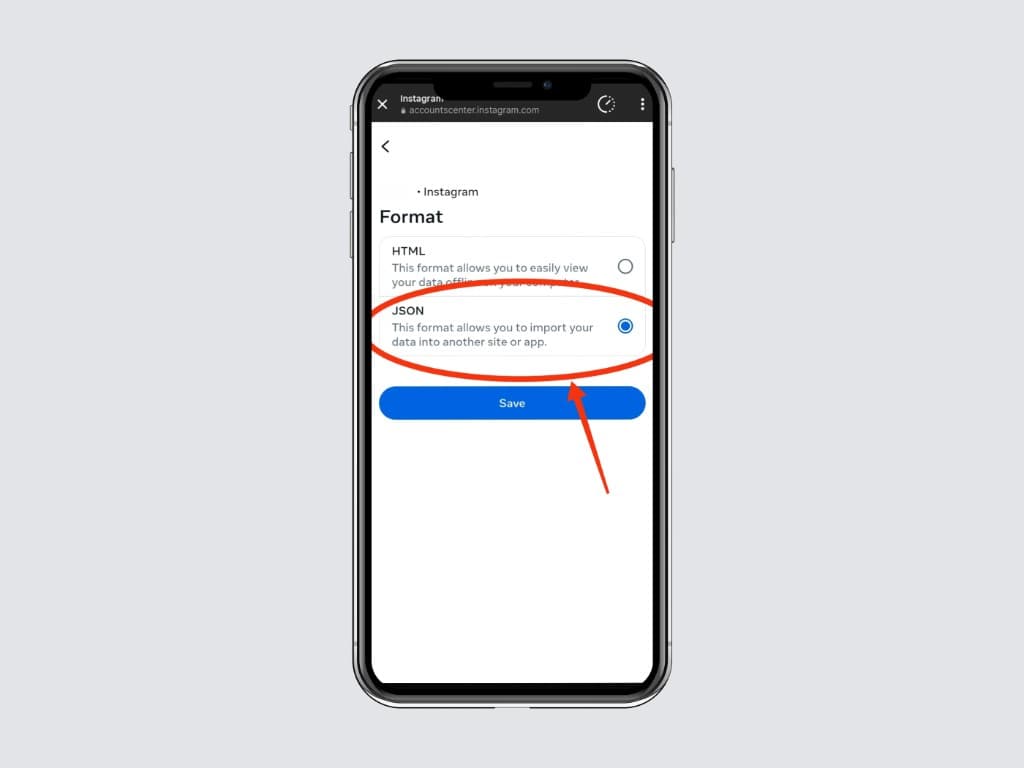
Tap Format and select JSON (not HTML). HTML is human-readable but not machine-parseable; the Unfollowers Tracker and basically every other ZIP-based tool only handle JSON. If you accidentally pick HTML you will need to redo the entire export, so double-check this one before you continue.
Step 12, Verify the summary and tap Start export
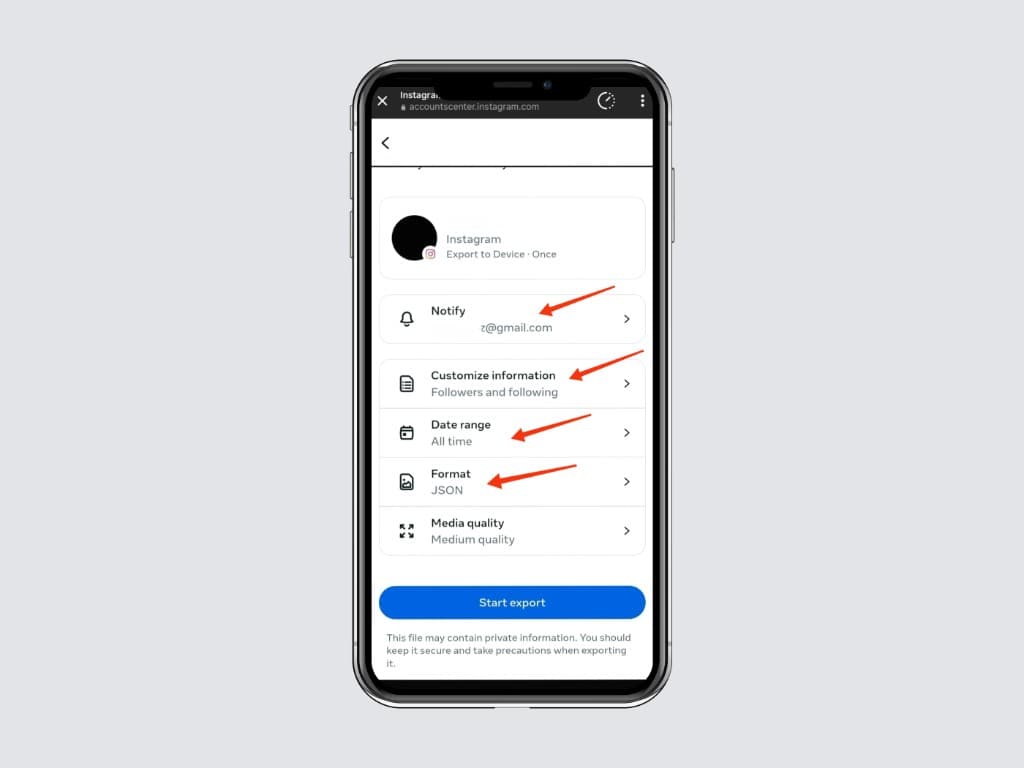
Back on the Confirm your export screen, you should now see all four settings filled in:
- Notify: your email address
- Customize information: Followers and following
- Date range: All time
- Format: JSON
If any of those is wrong, tap into it and fix it. When everything matches the screenshot above, tap the blue Start export button at the bottom.
Step 13, Re-enter your password if prompted
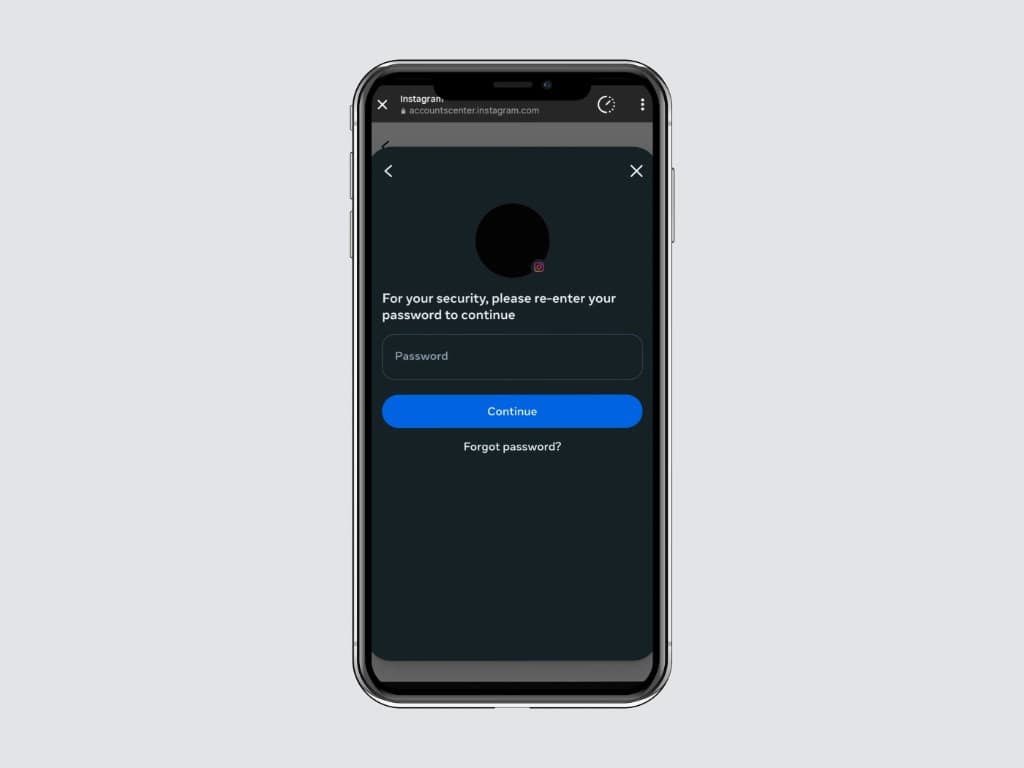
Meta sometimes asks you to re-enter your Instagram password as a final security check before sending sensitive data. This is a safety feature, type your password and tap Continue. (Note: this is your password going to Instagram itself, not to a third-party app.)
Step 14, Wait for the Requested status
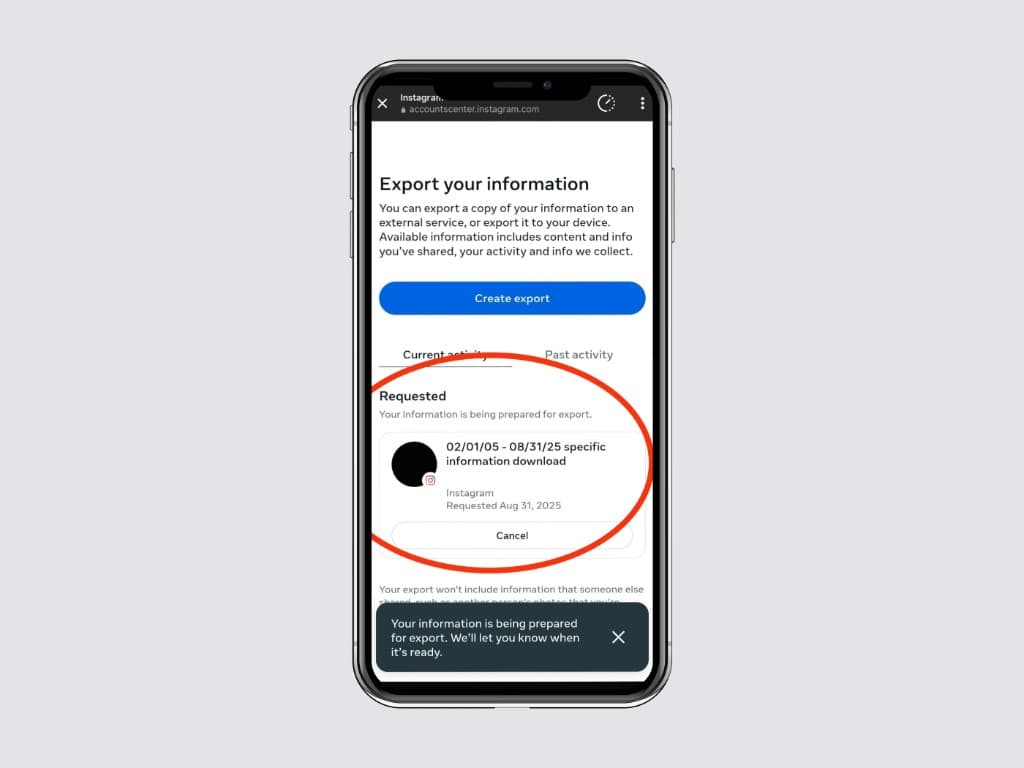
You will see a Requested card under "Current activity" with a date range and a toast that reads "Your information is being prepared for export. We’ll let you know when it’s ready." This is normal. You can close Instagram now, Meta will email you when the file is ready.
Typical wait times for a Followers-and-following-only JSON export:
- Small accounts (under 1k following): under 5 minutes
- Mid-size accounts (1k-10k following): 5-15 minutes
- Large accounts (10k-100k following): 15-60 minutes
- Mega accounts (100k+ following): up to 24-48 hours during peak periods
Step 15, Open the Meta email when it arrives
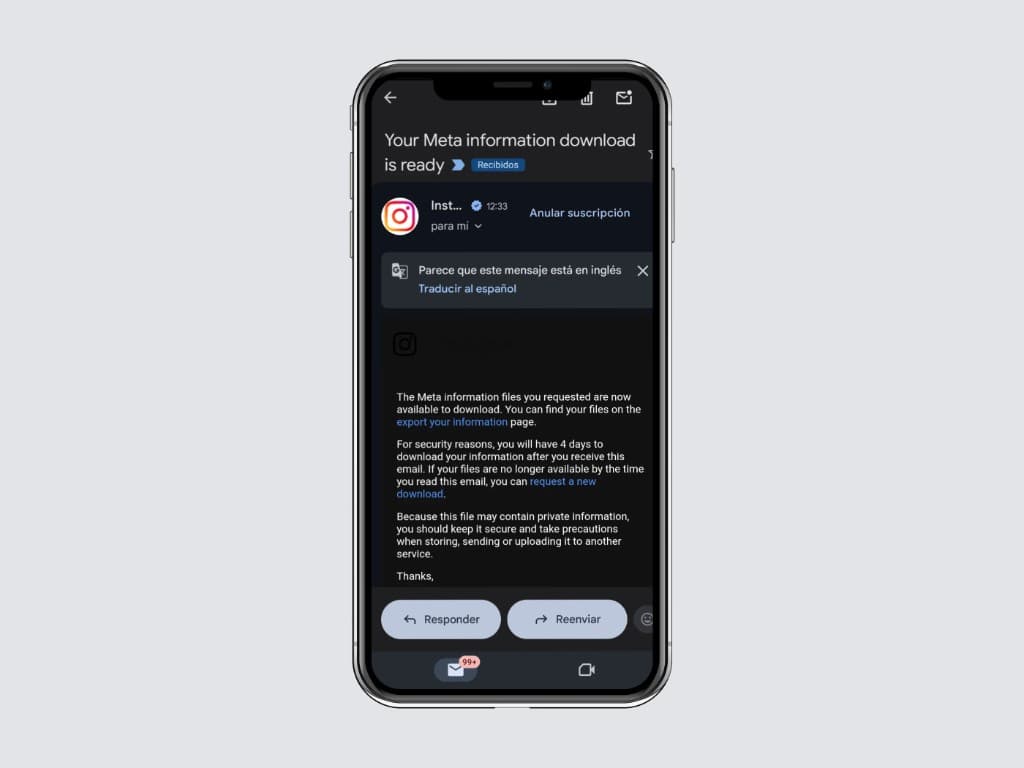
Meta sends an email titled "Your Meta information download is ready" to the address attached to your Instagram account. Open it. The email contains a link to the export page along with a security note: the file is available for 4 days, so do not let it sit too long.
If the email does not arrive within 30 minutes, check your spam folder and your Promotions tab in Gmail. If it still has not arrived after a few hours, request the export again, sometimes Meta’s export queue silently drops requests during peak load.
Step 16, Open Available downloads and tap Download
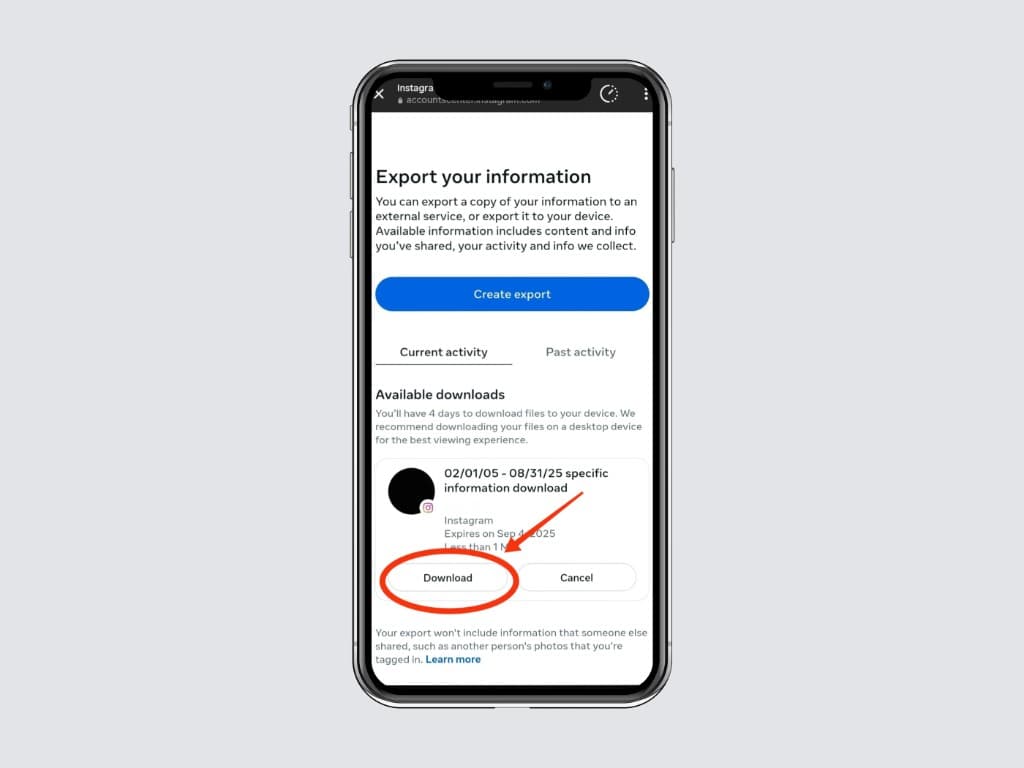
Either tap the link in the email, or go back to Settings and activity → Accounts Center → Your information and permissions → Export your information in Instagram. Under Available downloads you will see your completed export with a Download button. Tap it.
Step 17, Save the ZIP file to your device
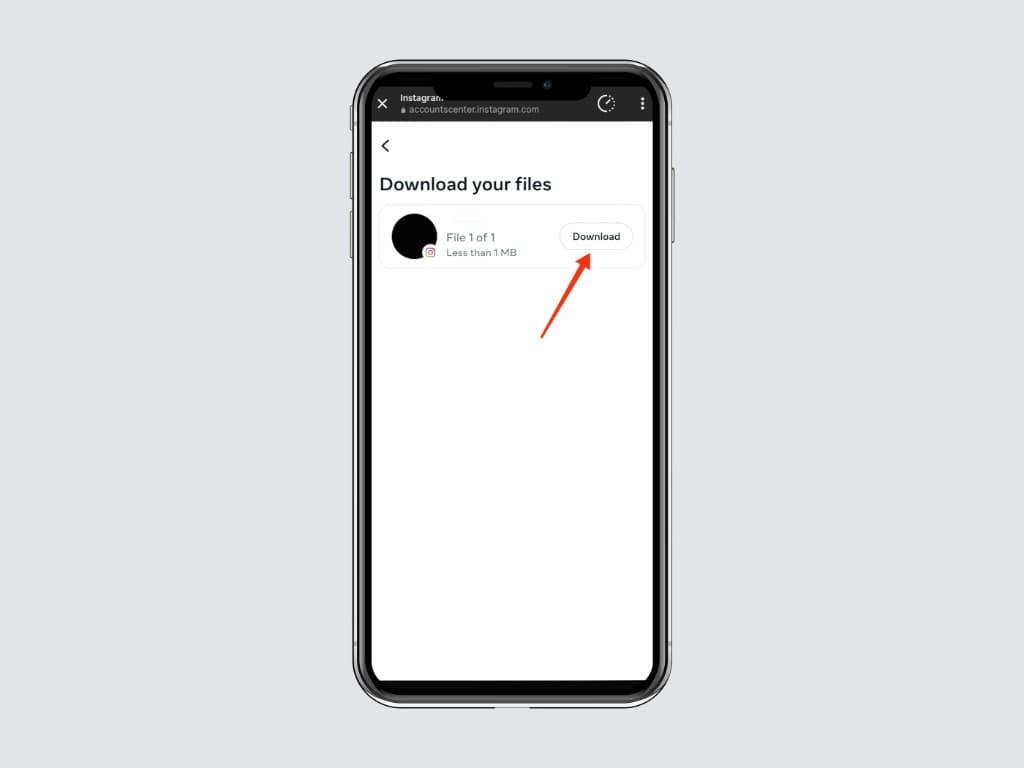
On the Download your files screen, tap the Download button next to the file. If you only chose Followers and following + JSON + All time, the ZIP is usually under 1 MB even for large accounts, the only thing inside is a small folder of JSON text files.
On iPhone, the ZIP saves to Files → Downloads (or Files → On my iPhone → Downloads). On Android, it saves to Downloads in your Files app. On desktop, it goes to your usual Downloads folder. Note where it lands, you will need it in the next step.
Step 18, Open the Unfollowers Tracker upload page
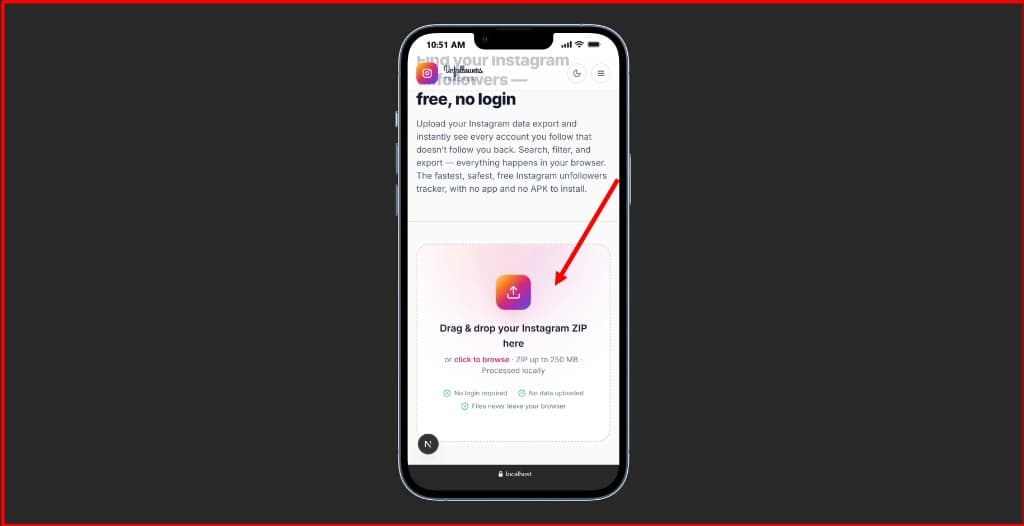
Open the free Unfollowers Tracker in your browser. The very first thing you will see is a "Drag & drop your Instagram ZIP here" upload area with the badges "No login required · No data uploaded · Files never leave your browser". That third badge is literal, there is no upload endpoint on the page. The full safety verification is in the is the Unfollowers Tracker safe? post.
Step 19, Drop the ZIP and read your results
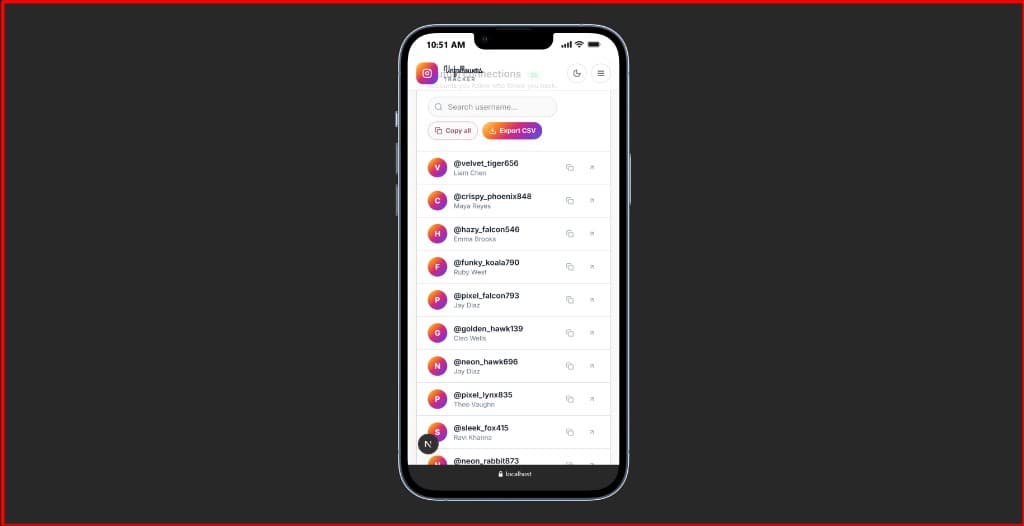
Drag the ZIP from your Downloads folder and drop it onto the upload area (or tap the upload area to browse). In under one second you will see a clean list of every username that does not follow you back, with quick actions to copy a single username, copy all, or export the entire list to CSV.
For deeper analysis of who left and what triggered it, read why am I getting unfollows on Instagram?, it covers the 7 most common reasons and what to fix.
From the same ZIP you can also explore three other angles, all 100% free:
- Ghost follow requests, every follow request you sent that has not been accepted
- One-way fans, accounts that follow you while you do not follow them back, often your most loyal audience
- Mutual followers, your real two-way connections
For the math behind each list, see how the Unfollowers Tracker works or the JSON method explainer.
Troubleshooting, the 8 things that actually go wrong
"I picked HTML instead of JSON"
You will need to redo the export. The Unfollowers Tracker only reads JSON files. Tap Create export again and on the Format screen pick JSON. The new export usually arrives faster than the first because Meta has cached most of your data.
"My ZIP is huge / it has been preparing for hours"
You probably forgot to Customize information. By default Meta exports everything, photos, messages, captions, the lot, which can easily be a multi-gigabyte download. Cancel and re-create the export with only Followers and following ticked.
"I never got the email from Meta"
Check your spam folder, your Promotions tab, and any custom inbox filters. If it has been more than 24 hours, request the export again. Meta’s export queue occasionally silently drops requests during peak periods.
"The Unfollowers Tracker says it cannot find followers"
This is almost always one of two issues: (1) you exported in HTML format instead of JSON, or (2) you exported the wrong category (e.g. "Posts" instead of "Followers and following"). Check both, then re-export.
"The list is wrong / shows people I am still following"
Your ZIP only reflects the moment Meta generated it. Anyone who unfollowed you after the export was created will only show up the next time you re-request the ZIP. For very fresh data, request a new ZIP. The full accuracy notes are on the FAQ page.
"Will Instagram suspend my account for using this?"
No. The Unfollowers Tracker never logs into Instagram, never automates anything on your behalf, and the ZIP is data you officially own. There is nothing for Instagram to detect. Compare with the suspension risks listed in why you should never use a third-party Instagram login app.
"Does this work on a private account?"
Yes. Because the ZIP is your data, account privacy does not matter. The full guide is in private account unfollowers tracker: does it work?.
"Do I really not need an app or APK?"
Correct. No iOS app, no Android app, no APK, no Chrome extension. The full reasoning is in check Instagram unfollowers without an app and Instagram unfollowers tracker Chrome extension: a safer alternative.
Why the ZIP file method beats every "log in with Instagram" tracker
- Privacy: your Instagram credentials never leave your head. The ZIP file is your data; you analyse it on your own device.
- Accuracy: the data comes straight from Meta’s own systems. There is no scraping, no rate-limited API, no missed records.
- Safety: no automation against Instagram = zero risk of suspension or shadow ban.
- Free forever: no premium tier, no subscription, no paywall. The Unfollowers Tracker is fully free, including CSV export.
- No registration: no account, no email signup, no password. Drop the ZIP, get your results, close the tab.
- Works on every device: iPhone, Android, Mac, Windows, Linux, even Chromebooks. Anywhere you have a browser.
For a side-by-side feature table, see the comparison block on the home page or the deeper best free Instagram unfollowers tracker review.
Frequently asked questions about the Instagram ZIP file
What is actually inside the Instagram data ZIP file?
A folder structure with JSON text files. The relevant ones for unfollower analysis live in `connections/followers_and_following/` and include `followers_1.json` (sometimes split across multiple files), `following.json`, `pending_follow_requests.json`, and `recently_unfollowed_profiles.json`. Full structural breakdown is in the Instagram ZIP file method, explained.
Can I use the ZIP file directly from my phone?
Yes. Once the ZIP is in your phone’s Downloads folder, just open the Unfollowers Tracker in mobile Safari, Chrome, or Firefox and tap the upload area to browse for the file. Everything renders perfectly on mobile.
How long does Instagram take to prepare the ZIP file?
Usually 5-15 minutes for a small Followers-only export. Larger requests can take a few hours. Mega accounts requesting "All available information" sometimes wait 24-48 hours during peak load.
Do I need to unzip the file before uploading?
No. The Unfollowers Tracker uses the open-source library JSZip to read the ZIP directly in your browser. Just drop the `.zip` file as-is.
How often should I request a new ZIP?
Whenever you want fresh data. Most creators do it weekly or monthly. There is no rate limit on the Unfollowers Tracker, re-upload as often as you like at zero cost.
Does this work on a desktop browser?
Yes, identically. Every step in this tutorial has a desktop equivalent at instagram.com, the labels are the same, only the layout differs. The Unfollowers Tracker is also a fully responsive web app.
What about Instagram Threads?
Threads is a separate Meta product but shares your Accounts Center. Threads-specific data is partially included in the same export and we cover the current state in Threads unfollowers tracker.
What if I want to do this for TikTok or X (Twitter)?
Same idea, different downloads. We cover TikTok followers tracker and X (Twitter) unfollowers tracker in dedicated posts.
You’re done, here’s what to do next
You now have your Instagram data ZIP file in your Downloads folder and a working unfollowers list rendered safely in your own browser. Some sensible next steps:
- Bookmark the [Unfollowers Tracker](/unfollowers) so you can re-run this analysis any time without rooting around in settings.
- Skim the [ghost follow requests](/ghosts), [one-way fans](/fans), and [mutual followers](/mutuals) lists from the same ZIP, they unlock different growth conversations.
- Read the [how-it-works guide](/how-it-works) for the full set of features and the tutorial for a shorter recap.
- Watch the [animated 60-second demo](/demo) if you would like to send the workflow to a friend or teammate without sharing a screen.
- Check our [privacy policy](/privacy) and [disclaimer](/disclaimer) to see exactly what we do (nothing) with your data.
Knowing who unfollowed you on Instagram is not about ego, it’s about closing the feedback loop on what you post. Now that you have a safe, repeatable way to get the answer, you can stop wondering and start posting better.
Questions, edge cases, or a screenshot we should add? Hit us up via the contact page. We read every email.
FAQ, Downloading the Instagram ZIP file
How long does Instagram take to prepare my ZIP file?
For a Followers and Following only export in JSON format, usually 5-15 minutes. For "All of your information" exports it can take up to 48 hours during peak periods.
Why do I need to choose JSON instead of HTML?
The Unfollowers Tracker (and any analysis tool) needs structured machine-readable data. HTML is for humans; JSON is for software. Always pick JSON when prompted.
Can I download my Instagram ZIP from a phone?
Yes. The entire export request flow works perfectly in the Instagram mobile app and so does the upload step on the Unfollowers Tracker. iOS Safari, Chrome on Android, both fine.
Will Instagram know I downloaded my data?
Instagram knows you requested the export (because they emailed you the link), but they have no signal that you analysed the file with any specific tool. The Unfollowers Tracker runs entirely in your browser.
What if I need fresh data later?
Just request a new export. There is no limit on how many times you can request your data, and the Unfollowers Tracker handles unlimited re-uploads at no cost.
Is the ZIP file workflow safe for a private Instagram account?
Yes, even safer than for a public account, because the data export is the only legitimate way to get follower data for a private account. No login, no scraping, no third-party access.
Table of contents43
Related reads
All posts
How to See Pending Follow Requests on Instagram (2026 Privacy-Safe Guide)
Instagram hides your sent follow requests, but Meta gives you the full list inside your data export. Here is how to see, manage, and cancel pending follow requests safely.
Best free Instagram unfollowers tracker (2026 guide)
A practical 2026 comparison of free Instagram unfollowers trackers, privacy, accuracy, mobile support, and which one we recommend.
How to check Instagram unfollowers without an app
You don’t need an Instagram unfollowers tracker app, APK, or Chrome extension. Here is the no-install method.