
Before you start
Make sure you have access to the email linked to your Instagram account, because Meta sends your data export to that address.
Every step below has a real screenshot from the Instagram app so you can match what you see on your screen tap for tap. The same flow works on iPhone, Android, Mac, Windows, and Linux. The companion blog post, step by step Instagram ZIP file tutorial with screenshots, goes deeper on edge cases (login screens, multiple linked accounts, JSON vs HTML, bigger exports).
Step 1. Open your Instagram profile menu
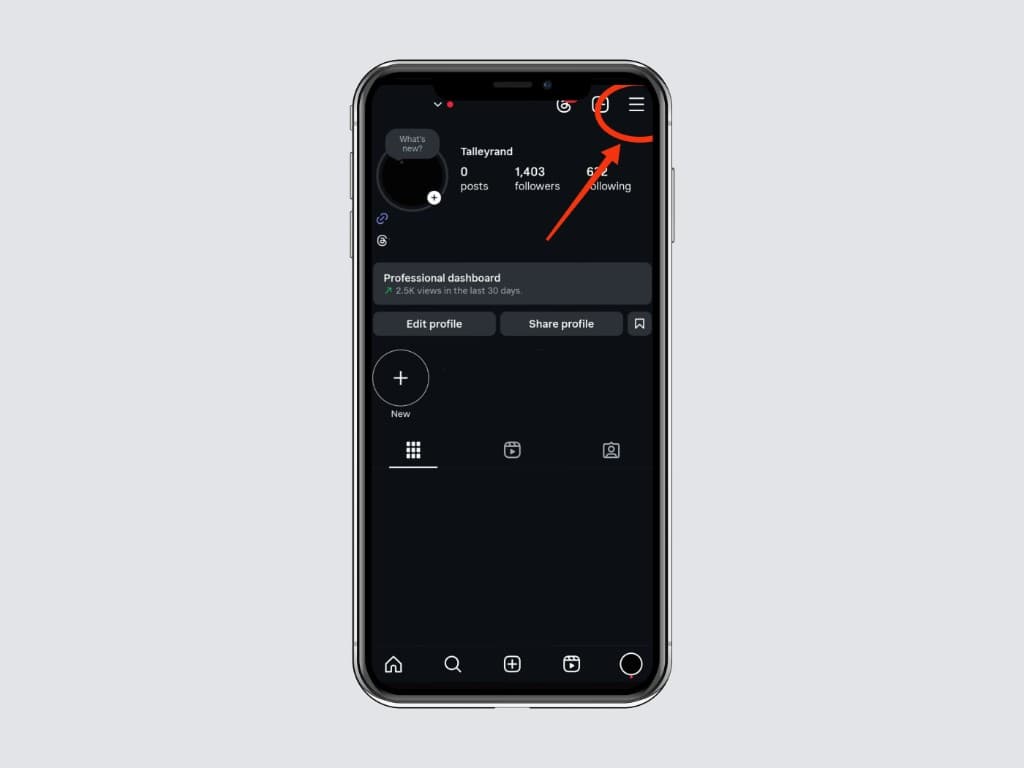
Launch the Instagram app on your phone (iOS or Android), tap your profile picture in the bottom right tab bar, then tap the ☰ menu icon in the top right corner. This opens the Settings and activity screen. On desktop, click your avatar at the top right of instagram.com, then click Settings.
Step 2. Open Accounts Center
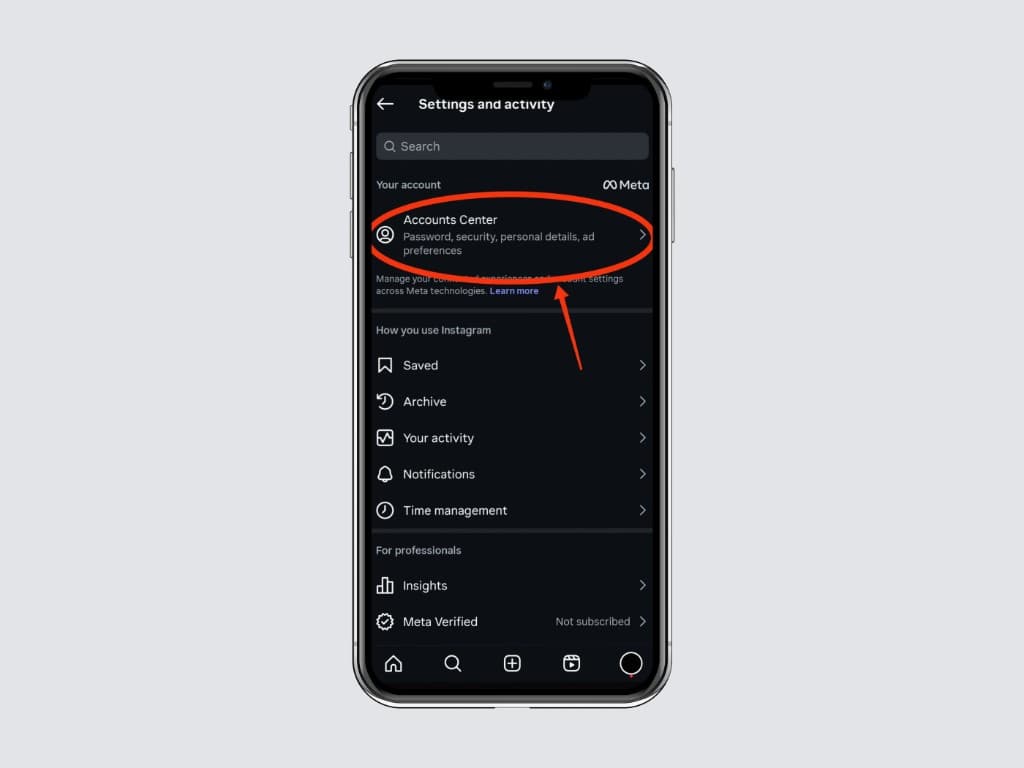
At the top of the Settings and activity screen, tap Accounts Center under the “Your account” heading. Accounts Center is the unified place where Meta manages settings shared across Instagram, Facebook, and Threads, including the data export tool.
Step 3. Open Your information and permissions
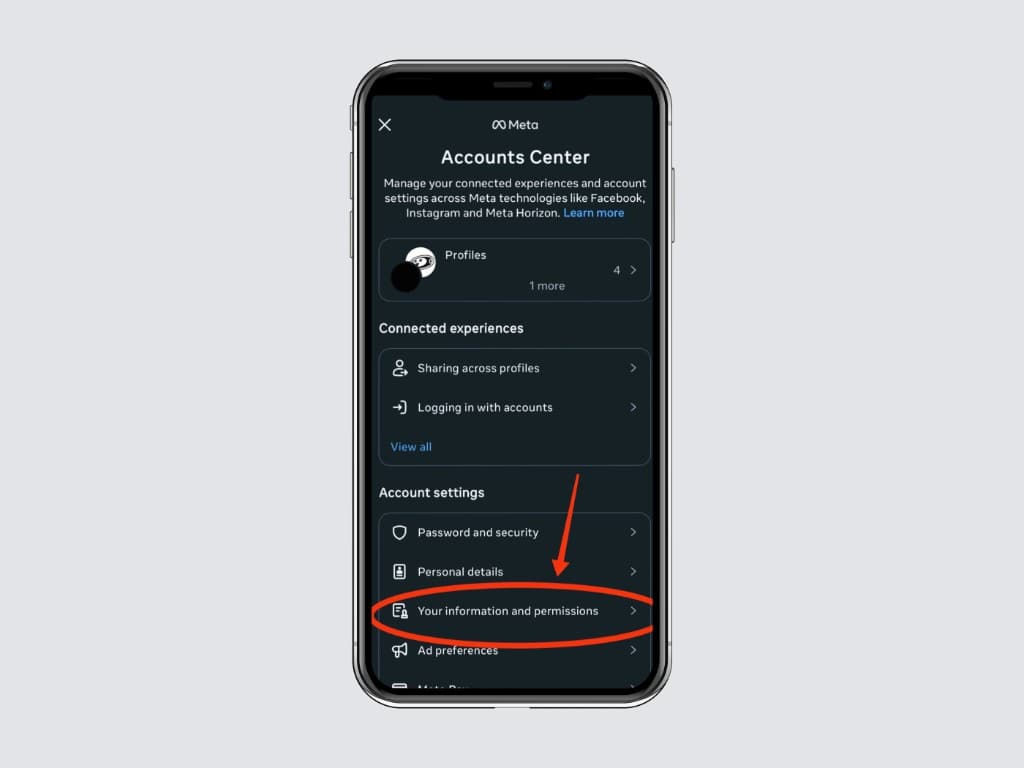
Inside Accounts Center, scroll down to the Account settings section and tap Your information and permissions. This is the privacy hub Meta is required to surface under GDPR, CCPA, and similar regulations, and it is also where the official Instagram data download lives.
Step 4. Tap Export your information
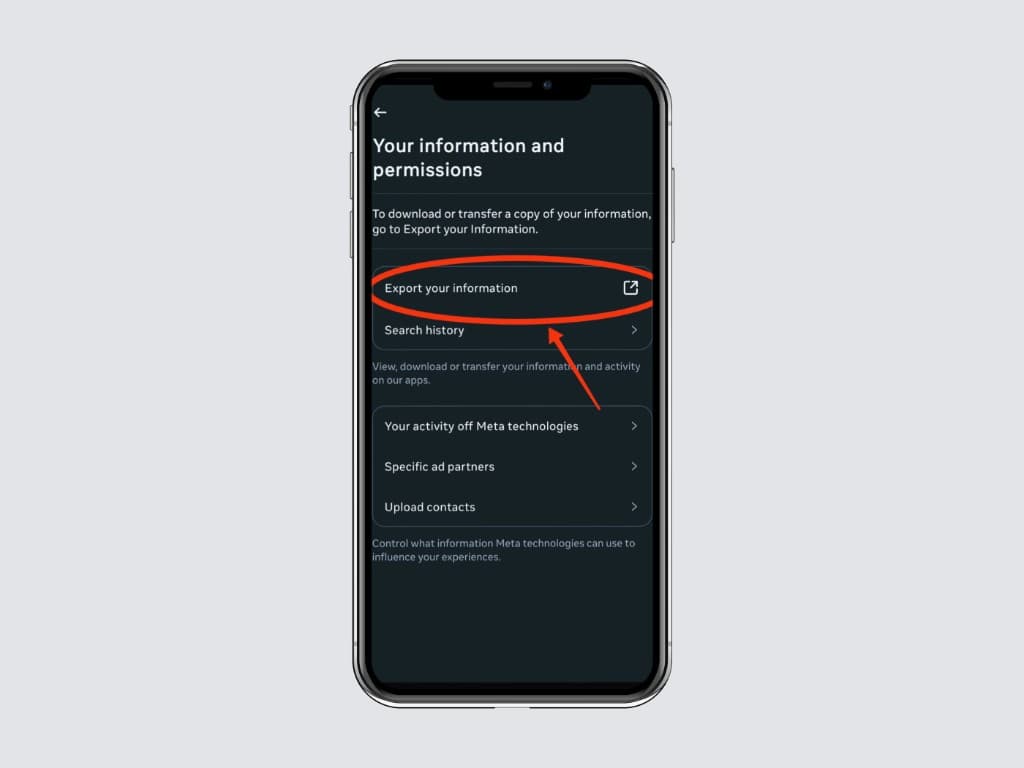
Tap Export your information. Meta may briefly ask you to log in again for security purposes, which is normal. After authentication you land on the export hub where you can request and download exports.
Step 5. Tap Create export
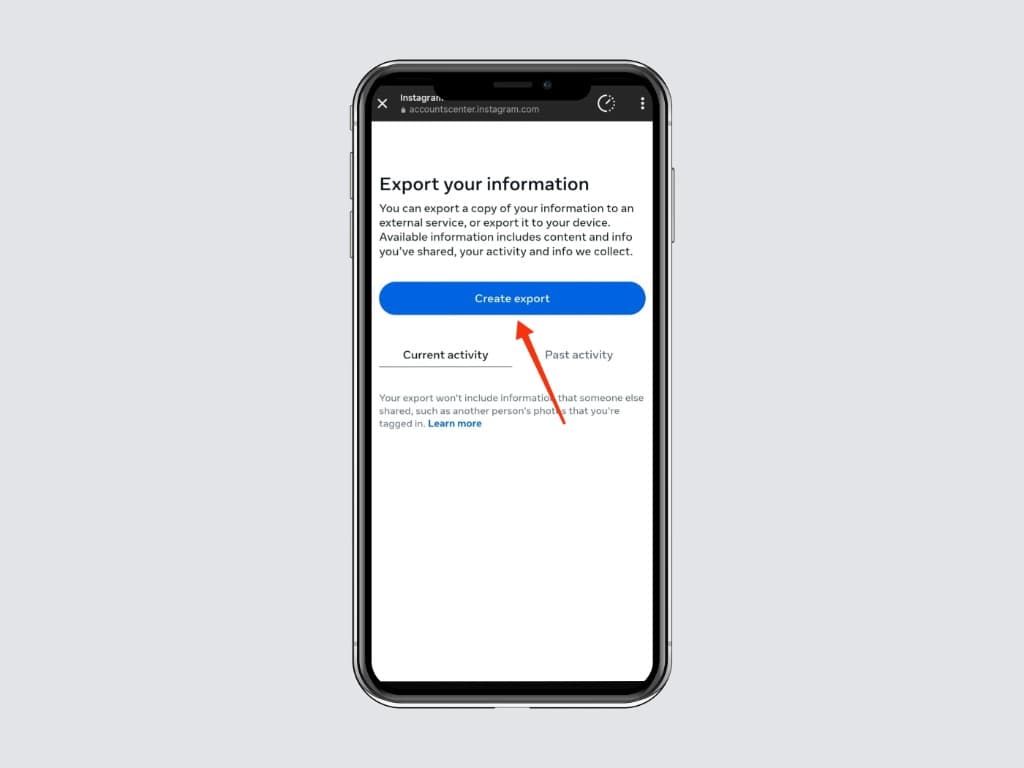
On the Export your information screen, tap the blue Create export button. This starts a brand new export request. Existing past exports (if any) appear below as a list, and you can re download those for 4 days after creation.
Step 6. Choose your Instagram profile
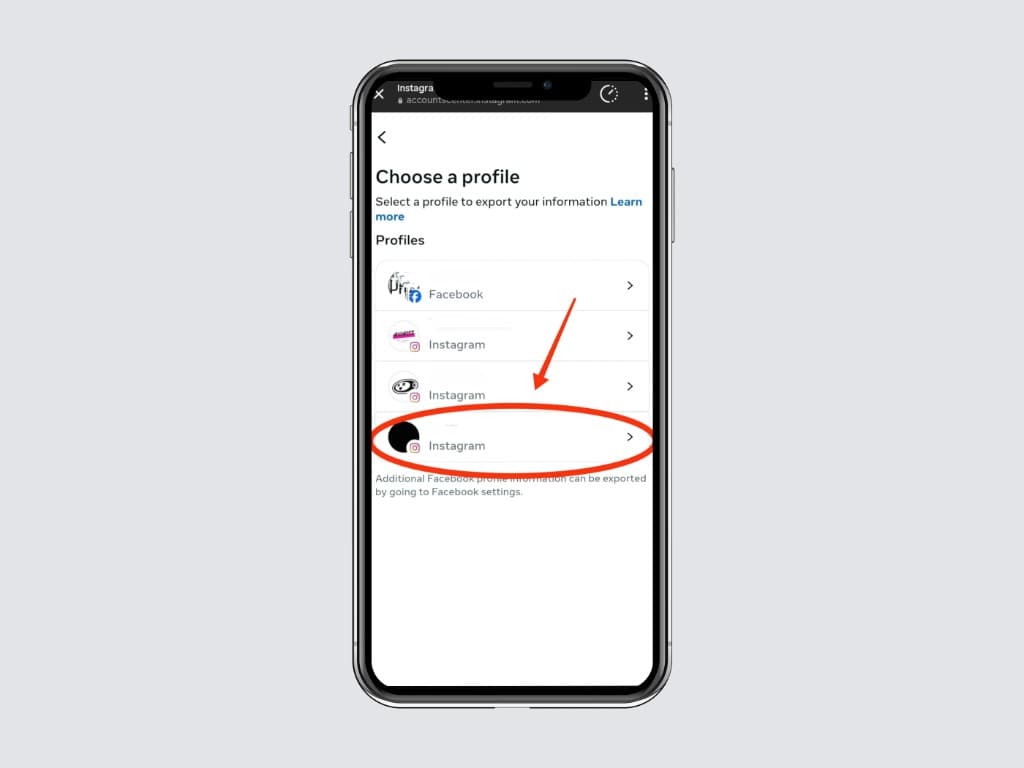
If your Accounts Center is linked to multiple Instagram, Facebook, or Threads profiles, you’ll see a list. Tap the Instagram profile whose unfollowers you want to find. If you only have one linked profile, this screen may be skipped automatically. This works fine for private accounts; the data is yours.
Step 7. Choose Export to device
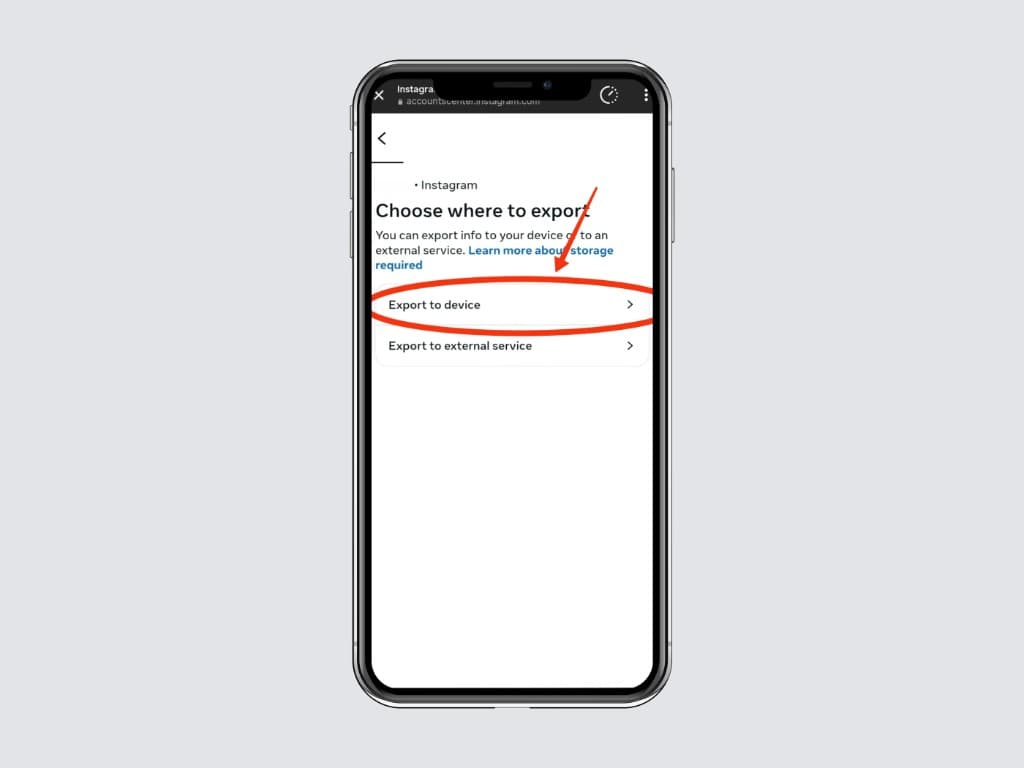
Meta gives you two options: Export to device or Export to external service (Google Drive, Dropbox, etc). Choose Export to device. It is the fastest, most private option, and it gives you the ZIP file you need to drop into the Unfollowers Tracker.
Step 8. Confirm Export to device
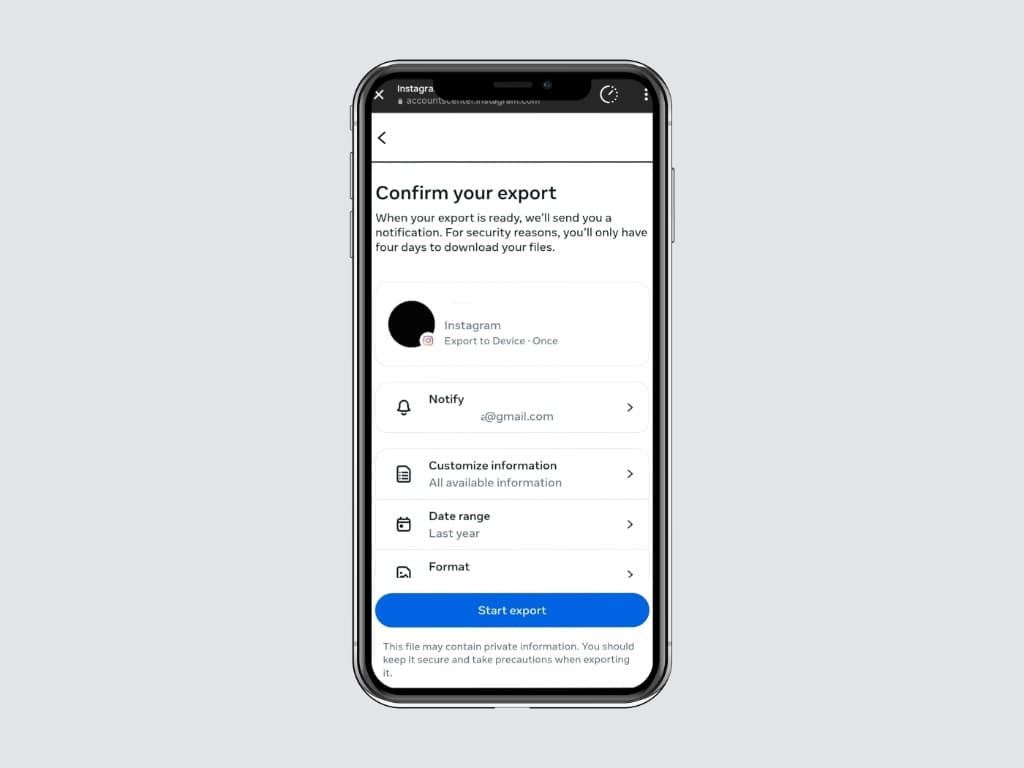
Meta will show a short explainer screen describing what “Export to device” does. Read it if you like, then tap the blue confirmation button at the bottom to continue.
Step 9. Tap Customize information
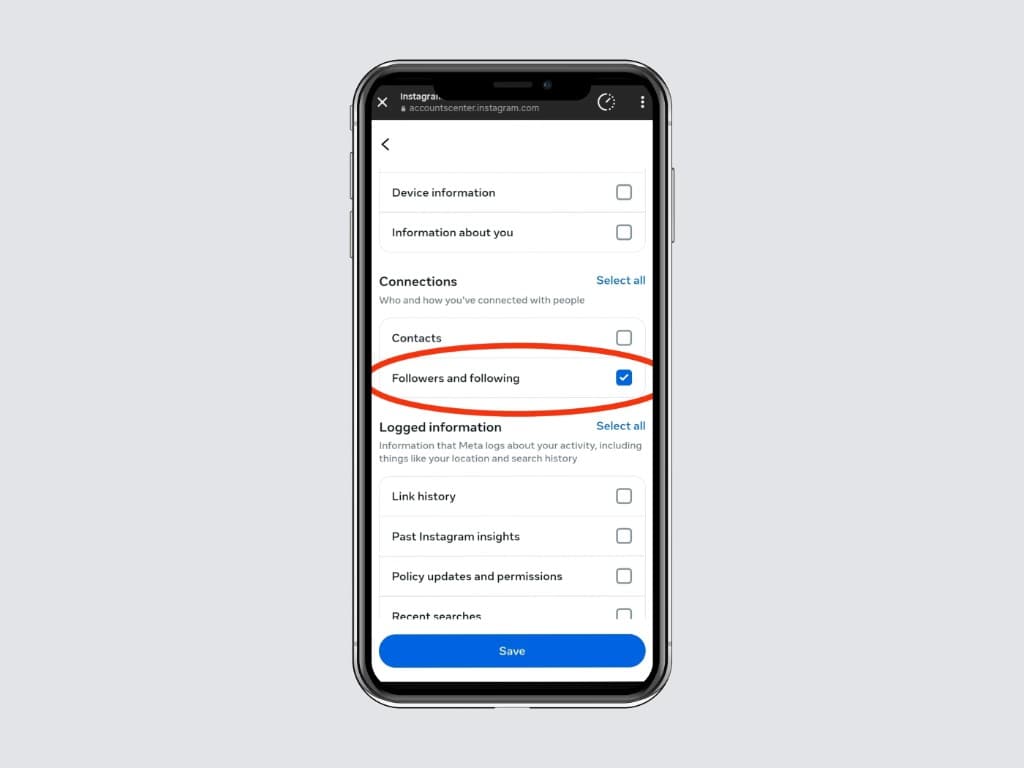
You can either export all your information (huge file, slow to generate) or just the bits the Unfollowers Tracker needs. Tap Customize information so you can pick Followers and following only. Inside, scroll to the Connections section and tick only Followers and following, then tap the back arrow to confirm.
Step 10. Set the date range to All time
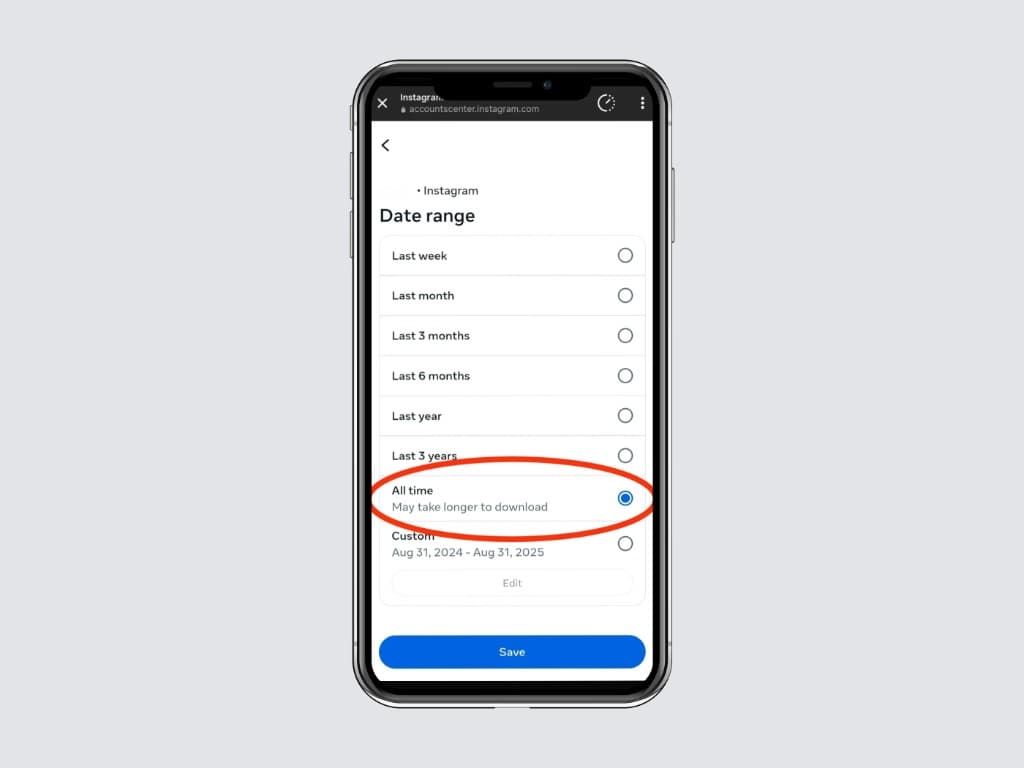
Tap Date range and pick All time. This makes sure your export contains every follower and following relationship since you created the account, not just a recent slice. The Unfollowers Tracker uses this complete data to compute accurate unfollowers, and unfollowers.
Step 11. Set the format to JSON
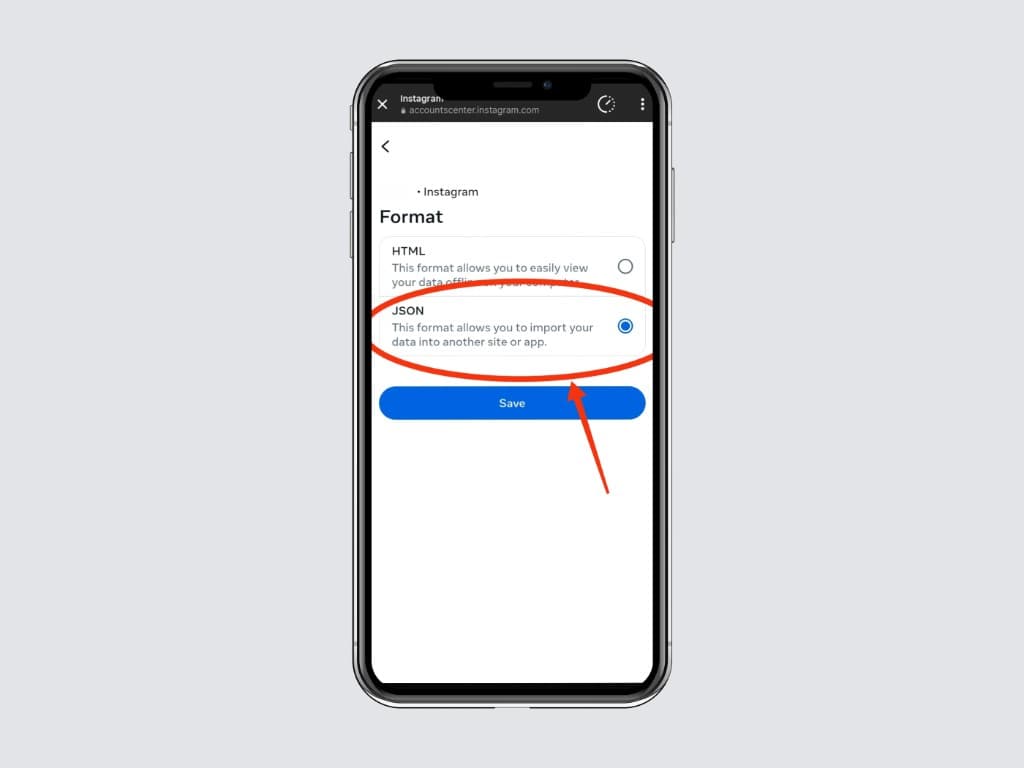
Tap Format and pick JSON. This is the single most important setting. The Unfollowers Tracker reads JSON files. If you accidentally pick HTML, the tool can’t parse it and you’ll have to re request the export.
Step 12. Review the final summary
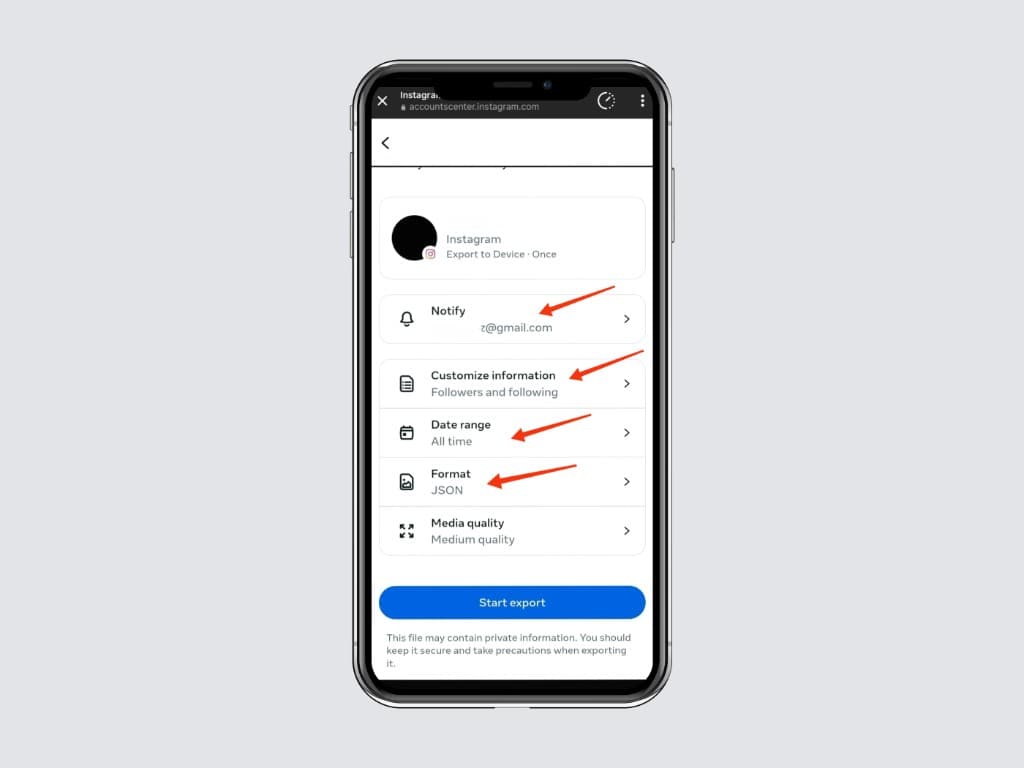
You should now see a clean summary: Information: Followers and following, Date range: All time, Format: JSON. If anything is wrong, tap to fix it. When the summary looks good, tap the blue Start export button at the bottom.
Step 13. Re enter your Instagram password
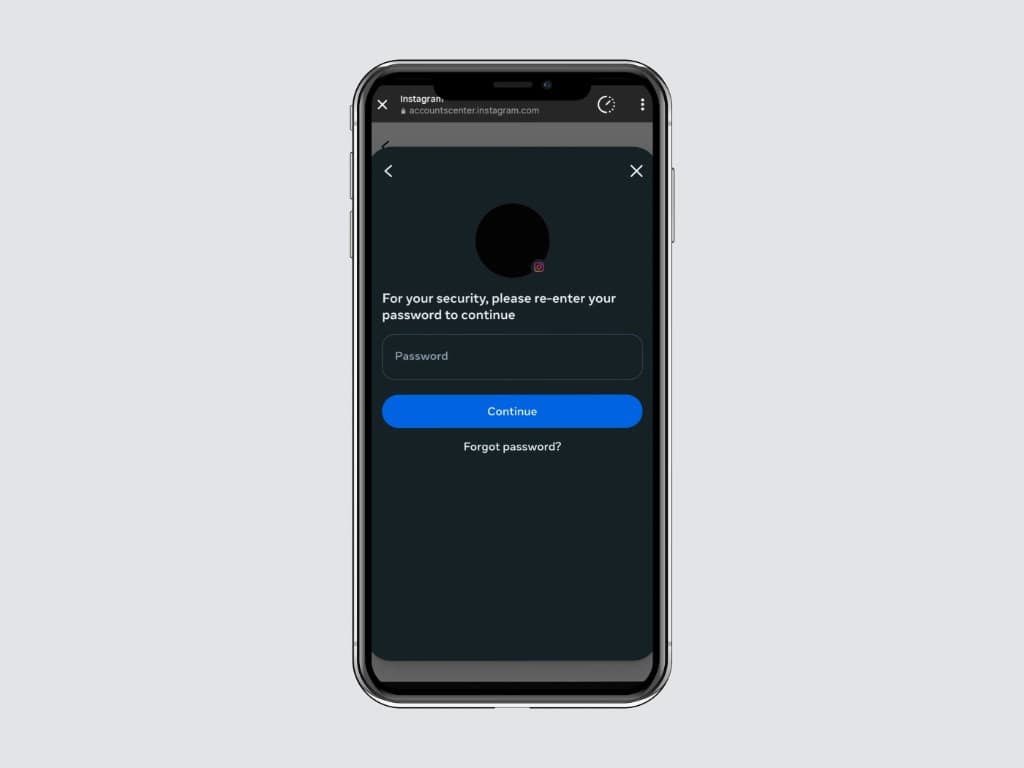
Instagram requires you to Re enter your own Instagram password to authorize the data export. This is normal and stays inside the official Instagram app. The Unfollowers Tracker never sees this password.
Step 14. Wait for the requested confirmation
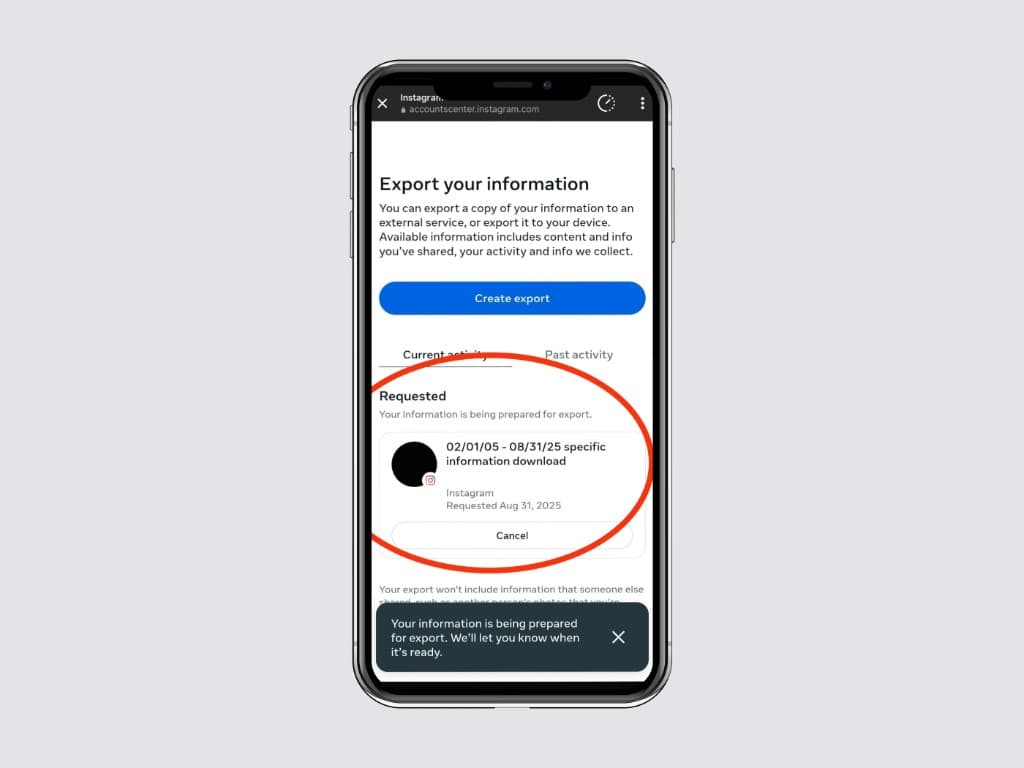
You’ll see a confirmation screen telling you the export has been requested. You can safely close Instagram now. Most Followers only exports arrive in 5 to 15 minutes; bigger exports (with photos and videos) can take a few hours.
Step 15. Open Meta’s “Your data is ready” email
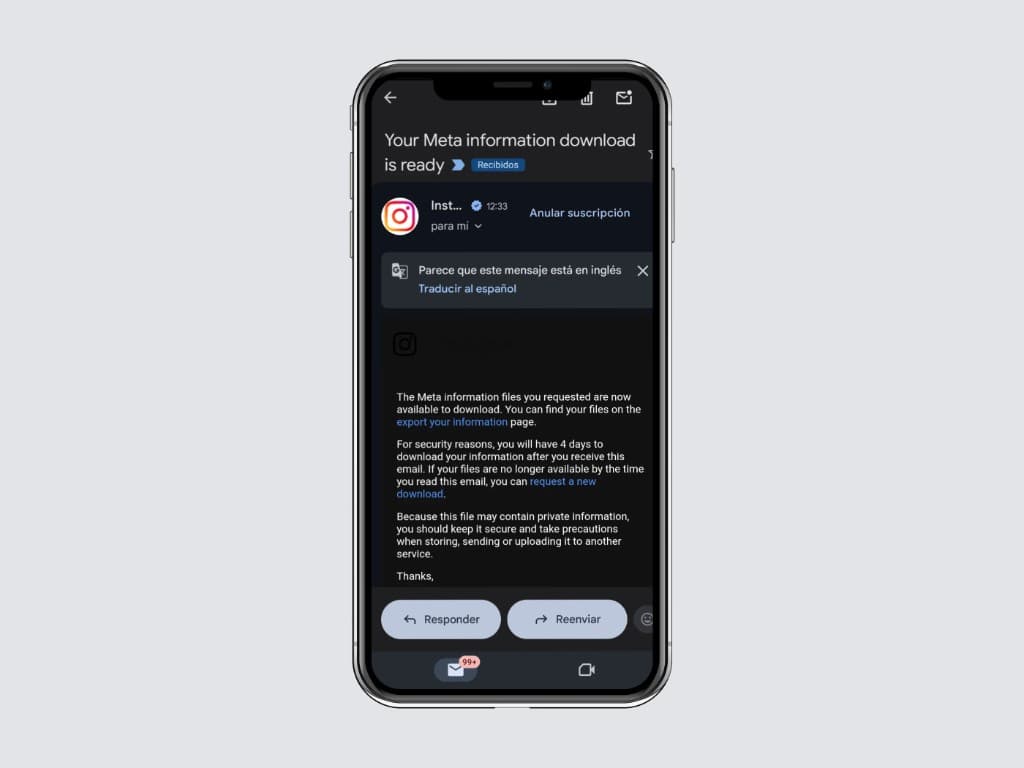
When the export is ready, Meta emails the address linked to your Instagram account. The subject is usually “Your Instagram information is ready to download”. Open the email and tap the download link, which takes you back to the Instagram app or website.
Step 16. Open Available downloads
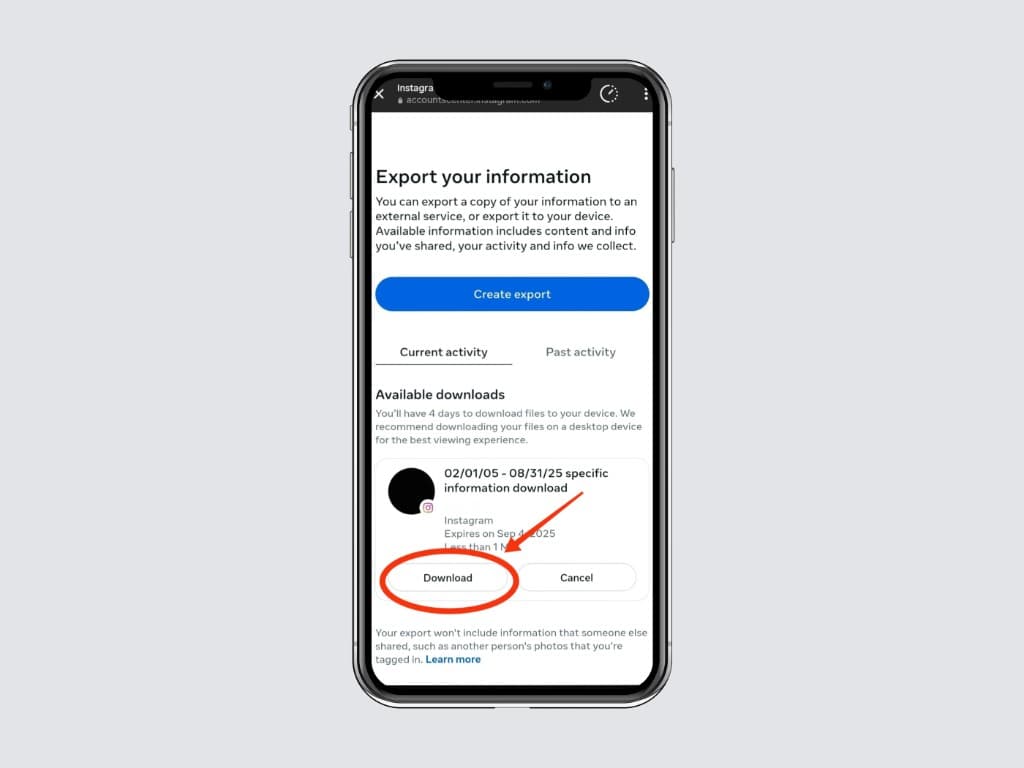
Inside Instagram, you’ll see your new export listed under Available downloads. Tap it to open the download details. Each export stays available here for 4 days, so don’t worry if you can’t download immediately.
Step 17. Save the ZIP file to your device
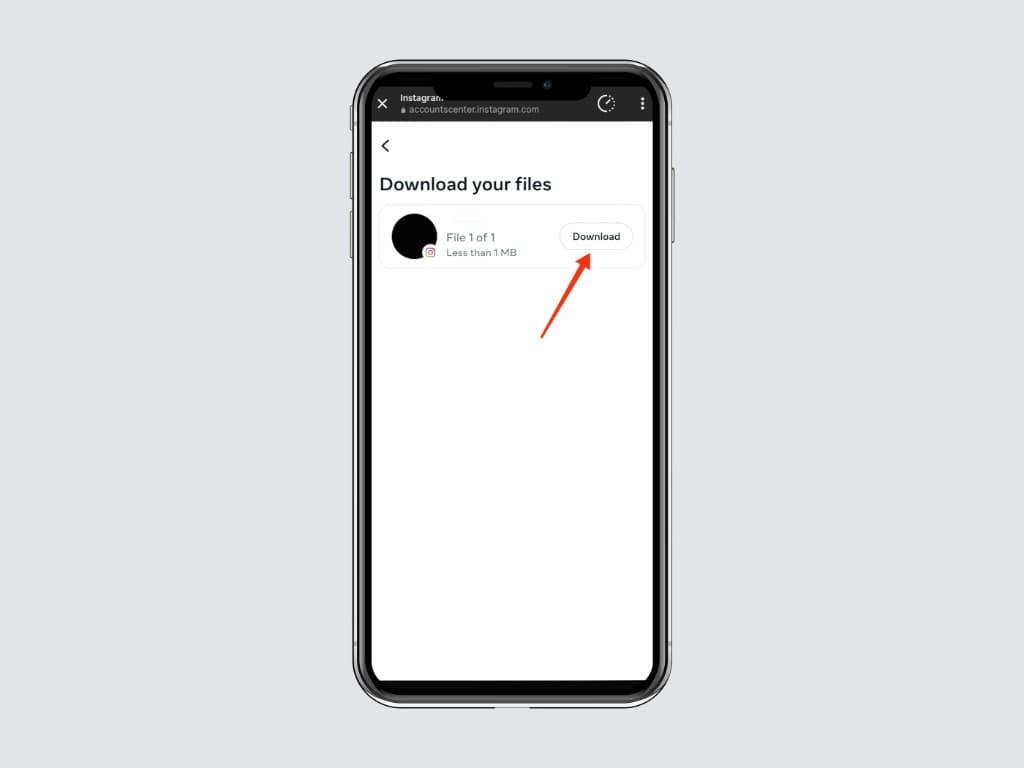
On the Download your files screen, tap Download. The ZIP is usually under 1 MB if you only chose Followers and following, and it saves straight to your Downloads folder. Don’t unzip it. The Unfollowers Tracker does that automatically in your browser.
Step 18. Open the Unfollowers Tracker upload area
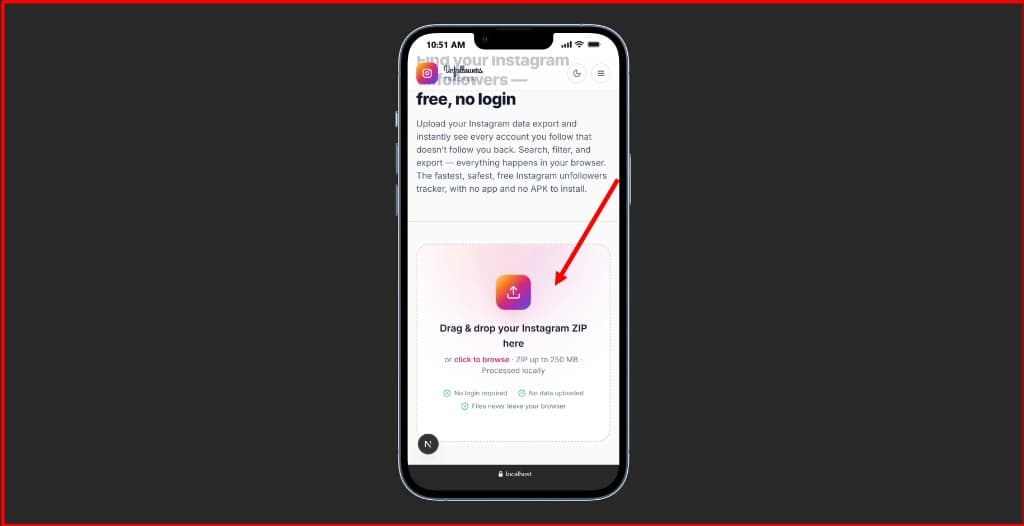
Open the free Instagram unfollowers tracker on this site. You’ll see a big “Drag & drop your Instagram ZIP here” area. The tracker runs entirely in your browser, so the ZIP never leaves your device. Verify it yourself with the 30 second test in is the Unfollowers Tracker safe?.
Step 19. Drop the ZIP and read your results
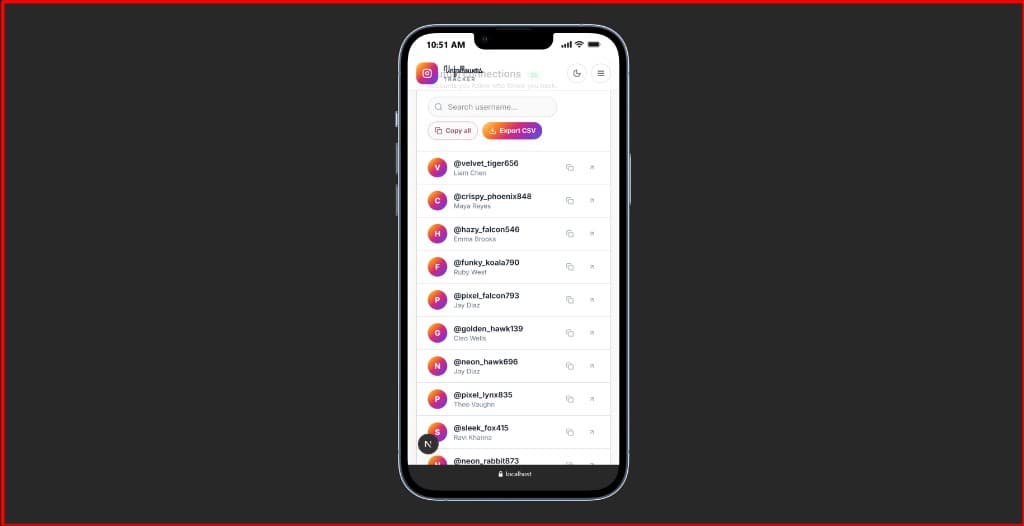
Drag the ZIP onto the upload area, or click to browse. In under one second the tracker shows every account that doesn’t follow you back, plus your other lists in the unfollowers tracker. Every list has a Copy button (per username) and an Export CSV button. Use them freely. The tool is 100% free, with no login, no upload, and no premium tier.
Troubleshooting
- Tracker says it can’t find followers? You probably exported in HTML format. Re request the export and pick JSON in step 11.
- Email never arrives? Check spam, wait an hour, and if it’s still missing, contact us. Humans answer within 48 hours on weekdays.
- Multiple linked Instagram accounts? Make sure you pick the right profile in step 6.
- Worried this might be unsafe? Read is the Unfollowers Tracker safe? for a 30 second verification you can run yourself.